
Vehicle Profiles That Give You Full Control Over Every Vehicle in Your Fleet

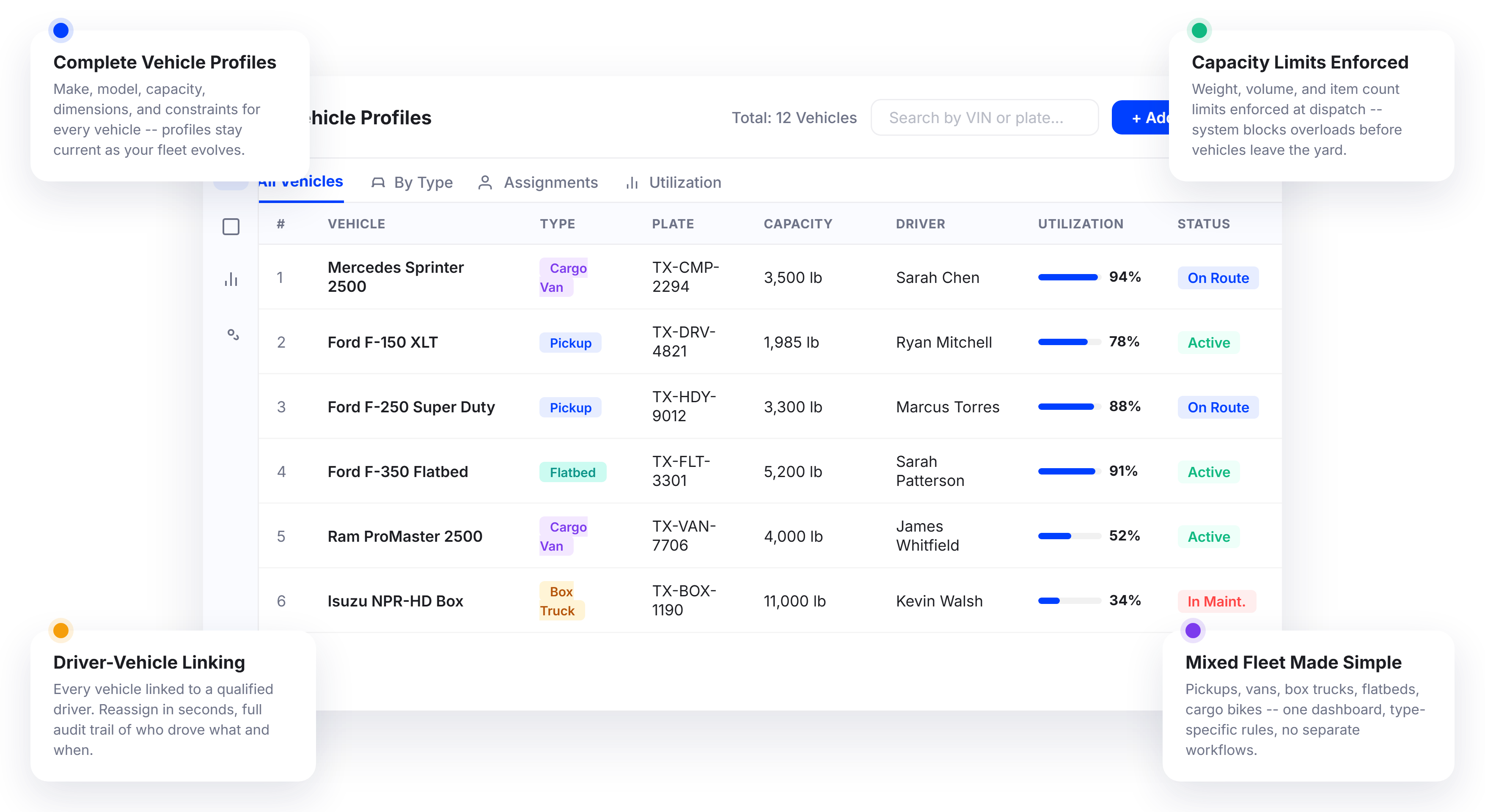
Fleet Managers Using Vehicle Profiles Reduce Vehicle-Related Dispatch Errors by 60%





You Know Your Fleet. Your Software Does Not.
What Fleet Vehicle Management Should Do:
-
 Store every vehicle’s specs, capacity, and constraints in one place
-
Track availability, assignments, and operational status in real time
-
Ensure the right vehicle gets assigned to the right job every time
-
Give fleet managers a single view of the entire fleet

What
Actually Happens
-
Vehicle details live in a spreadsheet that nobody updates after week one
-
Dispatchers rely on memory to decide which vehicle can handle which load
-
Vehicles sit idle because nobody knows they are available
-
A van shows up for a job that needs a box truck, and the customer waits
Fleet Vehicle Profiles That Keep Every Vehicle Organized, Assigned, and Accounted For
Upper’s vehicle profiles replace scattered fleet records with a structured system that fleet managers actually use. Define each vehicle’s type, capacity, dimensions, and constraints once, and that profile becomes the single source of truth for dispatch, operations, compliance, and reporting. No more guessing what a vehicle can carry. No more assigning the wrong vehicle to the wrong job.
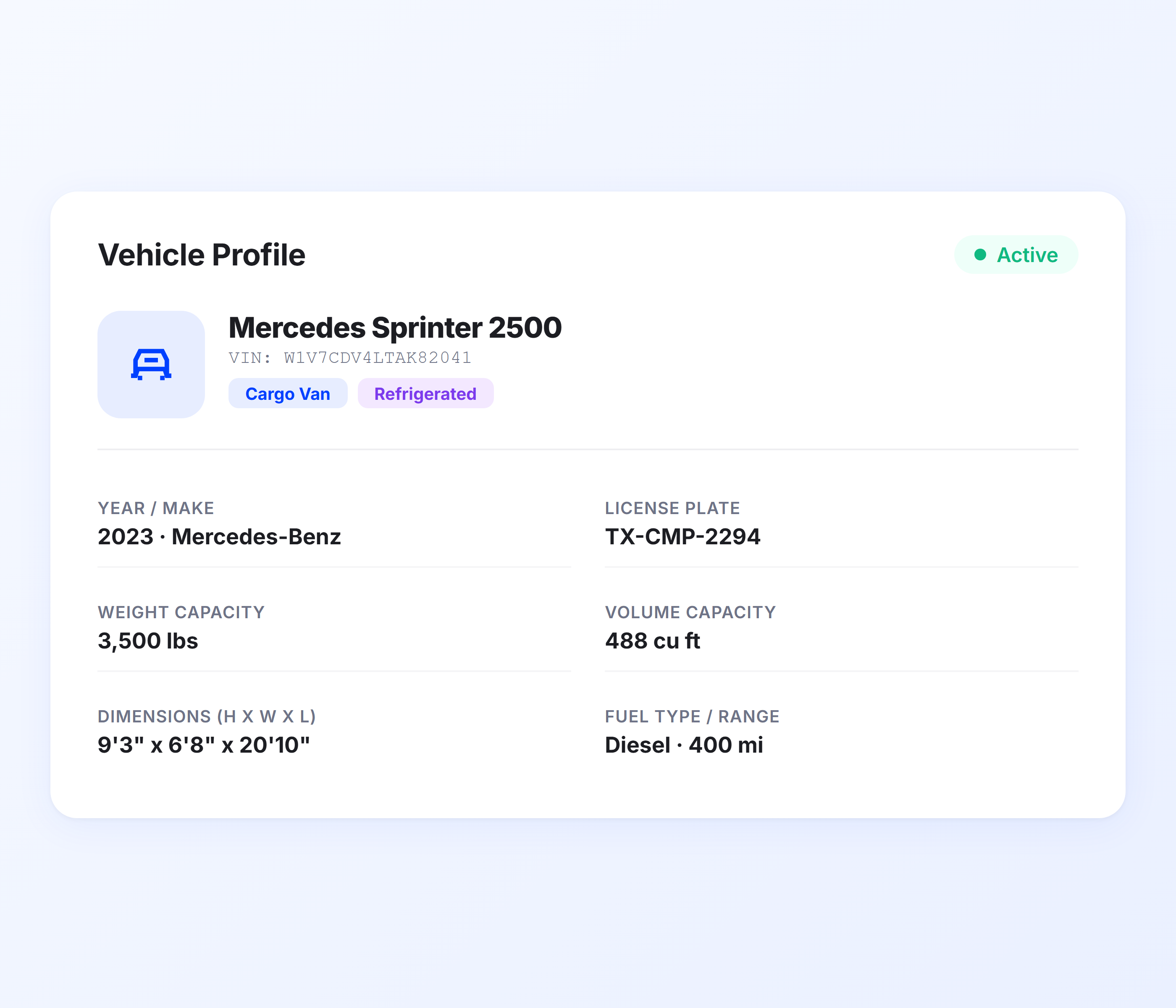
Vehicle Profile Setup and Configuration
Every vehicle in your fleet gets a detailed profile that captures the information fleet managers need for daily operations. Define make, model, capacity, dimensions, and constraints in minutes. Profiles stay current as your fleet evolves, so dispatchers and managers always work from accurate vehicle data.
-
 Vehicle make, model, year, and type classification
-
Weight and volume capacity limits per vehicle
-
Height, width, and length dimensions for compliance
-
Fuel type and range constraints for planning
-
Custom labels and tags for fleet organization
-
Active, inactive, and maintenance status tracking
-
Multiple vehicle types in one fleet profile set
-
Profile updates are reflected across operations immediately

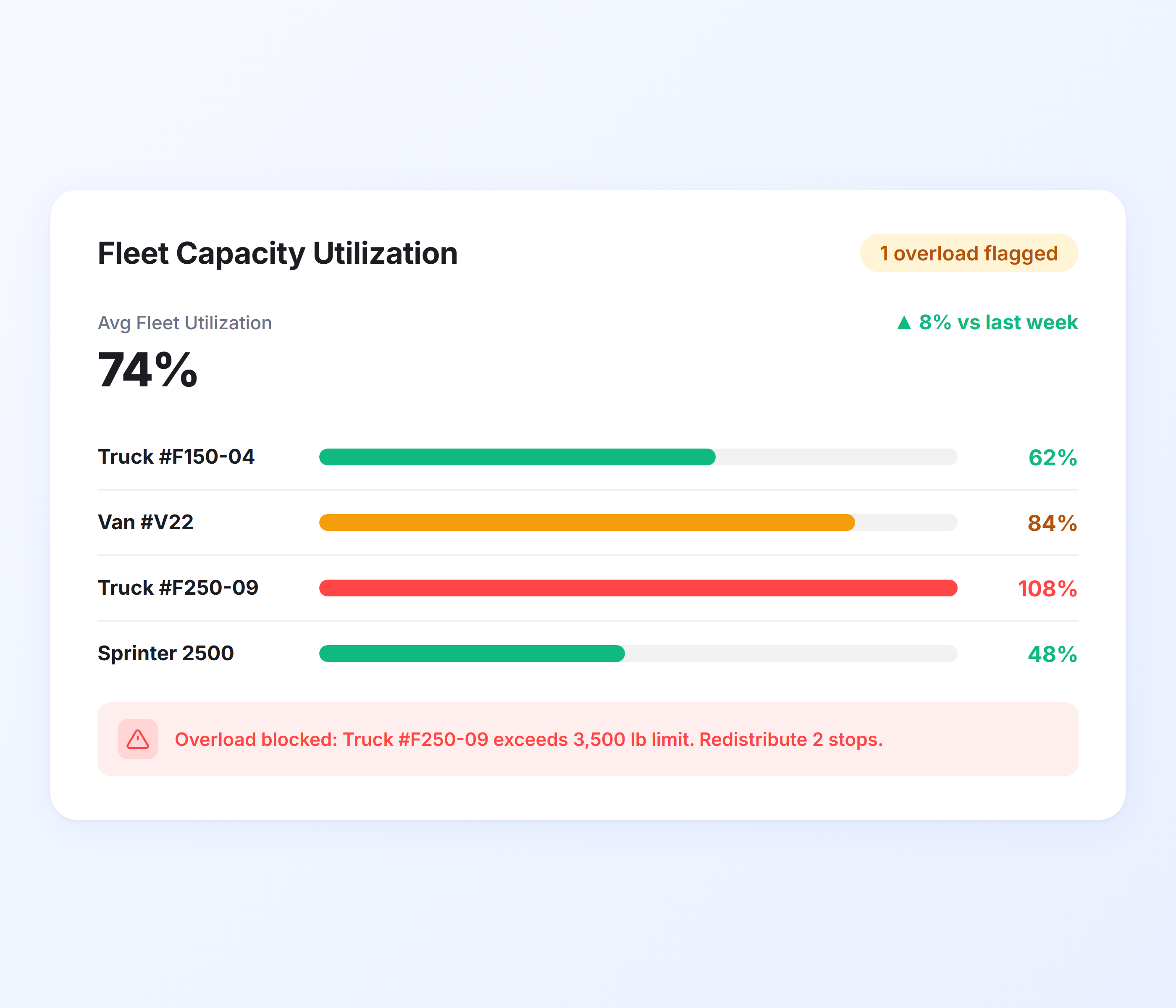
Fleet Capacity Management
Every vehicle in your fleet has limits. The question is whether your system knows them. Upper reads each vehicle’s capacity profile and enforces those limits across dispatch and operations, so no vehicle is overloaded and no capacity goes wasted. Fleet managers see utilization data across the entire fleet, not just one vehicle at a time.
-
Capacity limits are enforced during dispatch and route planning
-
Volume-based load balancing across vehicles
-
Item count constraints per vehicle
-
Real-time capacity utilization tracking per vehicle
-
Overload warnings before vehicles are dispatched
-
Drag-and-drop reassignment between vehicles
-
Fleet-wide capacity reports showing utilization rates
-
Mixed fleet capacity management for diverse vehicle types
Vehicle Type Management
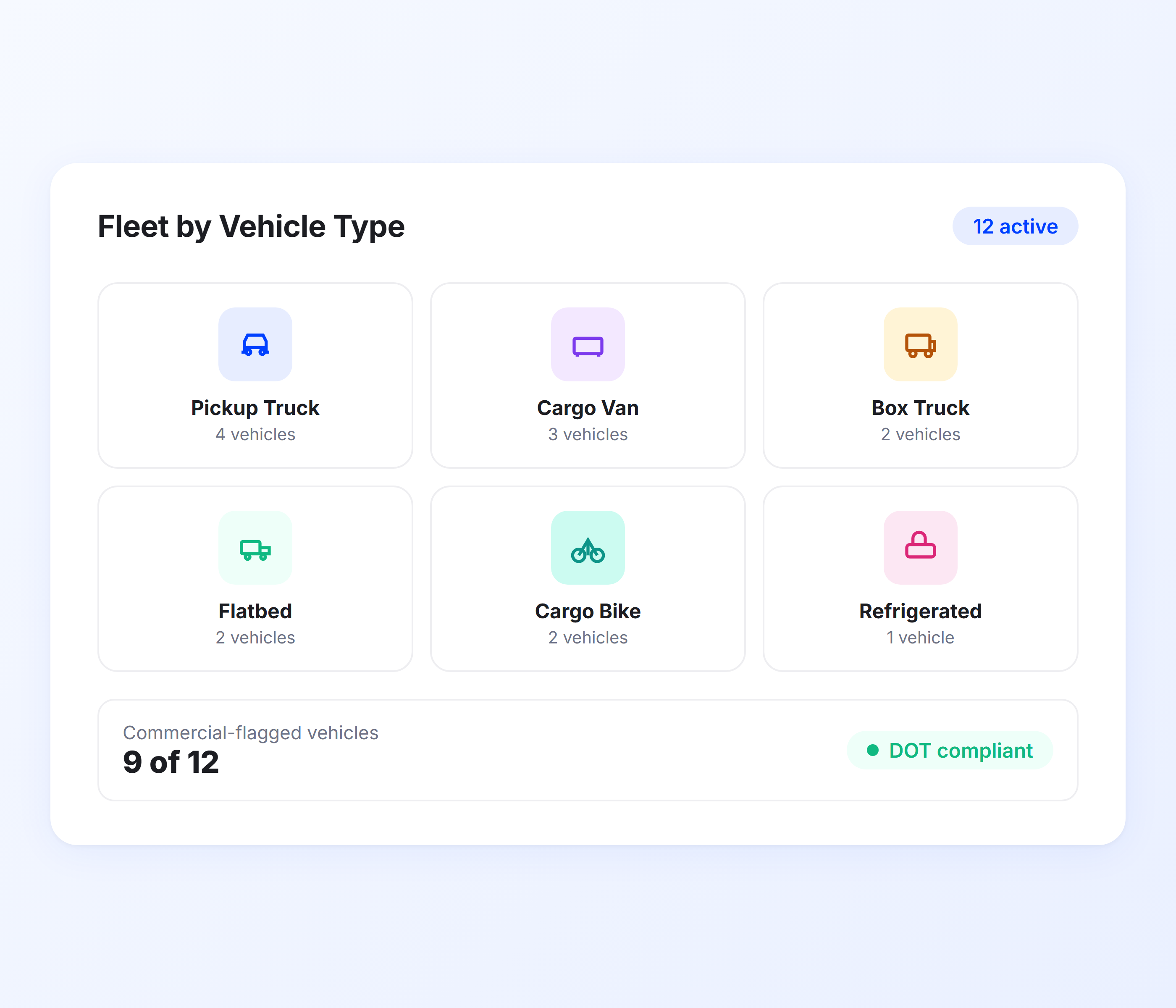
A fleet with five vans, three box trucks, and two cargo bikes needs different handling for each type. Upper’s vehicle profiles classify each vehicle by type and apply type-specific operational rules. Fleet managers see their fleet organized by type, and dispatchers assign vehicles based on what each job actually requires.
-
Vehicle-type classification for cars, vans, trucks, and bikes
-
Type-specific operational constraints and preferences
-
Commercial vehicle flagging for regulatory compliance
-
Height and weight restriction awareness per type
-
Type-based filtering on the fleet management dashboard
-
Speed and travel time estimates adjusted by vehicle type
-
Fleet composition reporting by vehicle type
Driver-Vehicle Assignment
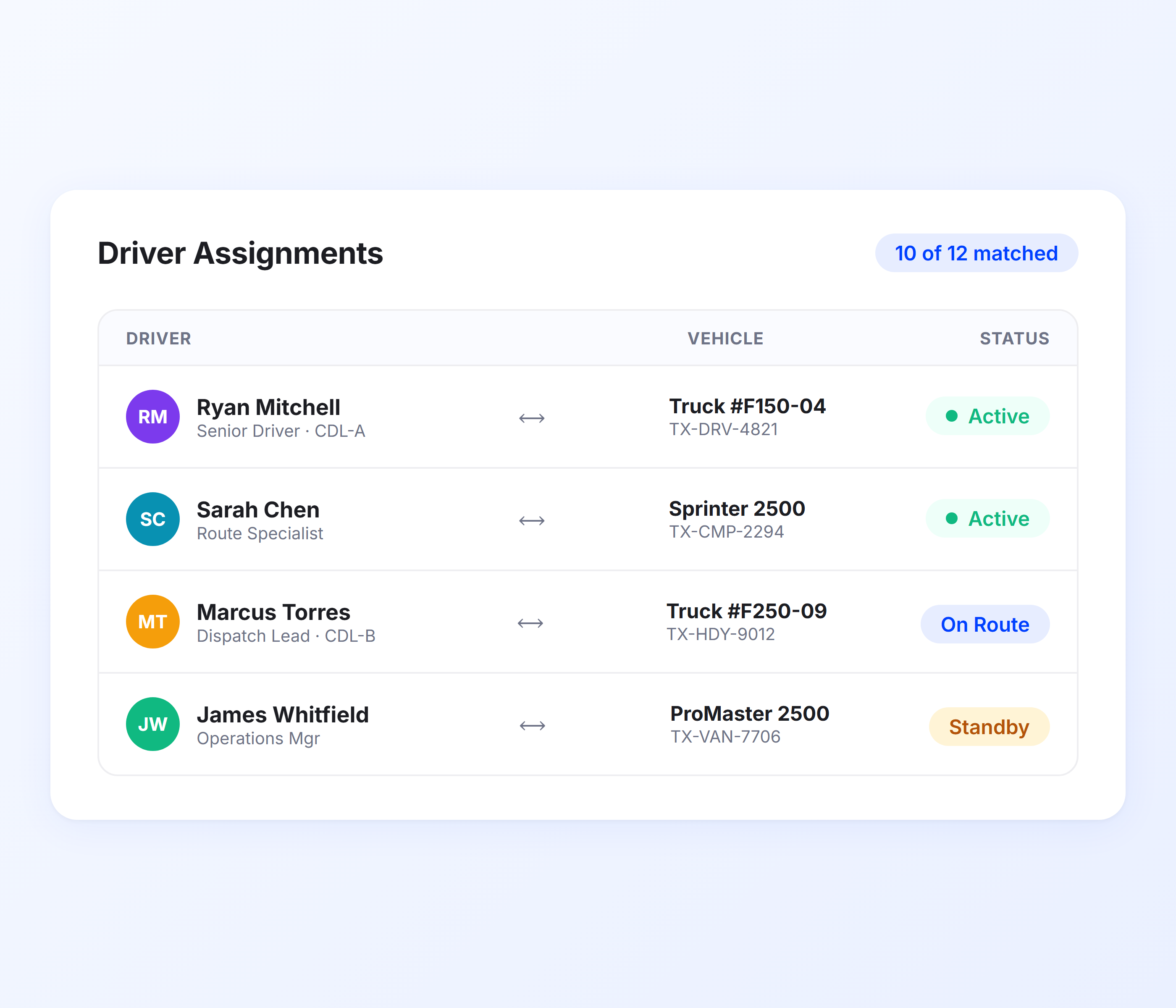
Fleet management means knowing who is driving what at all times. Upper links driver profiles to vehicle profiles so fleet managers have a complete picture of assignments, availability, and qualification matching. When a vehicle needs a different driver or a driver needs a different vehicle, reassignment takes seconds.
-
Driver-to-vehicle linking from the fleet management dashboard
-
Vehicle availability calendar for scheduling
-
Default vehicle assignment per driver
-
Quick reassignment when vehicles are unavailable
-
Driver qualification matching for commercial vehicles
-
Assignment history and audit trail
-
Real-time status showing which driver has which vehicle
Fleet Organization and Filtering
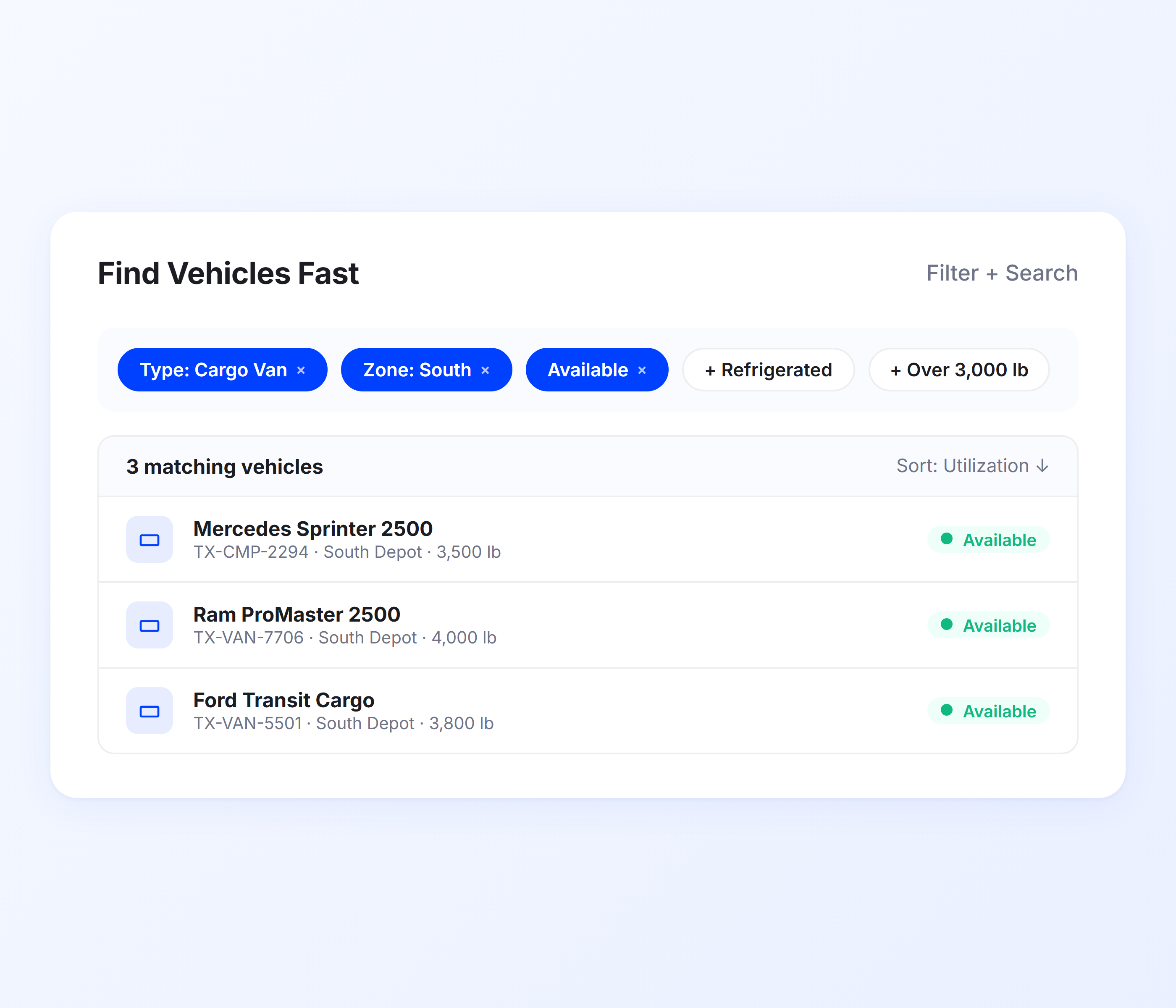
When you manage 10, 30, or 50 vehicles, finding the right one fast matters. Upper lets fleet managers filter, sort, and group vehicles by type, status, capacity, location, or custom tags. Need every available refrigerated van in the south zone? Two clicks.
-
Filter vehicles by type, status, or capacity range
-
Group by location, depot, or service territory
-
Custom tags for special equipment or capabilities
-
Search by make, model, license plate, or vehicle name
-
Bulk updates for fleet-wide changes
-
Dashboard view showing all vehicles at a glance
-
Export vehicle data for reporting and compliance
Vehicle Performance and Utilization Analytics
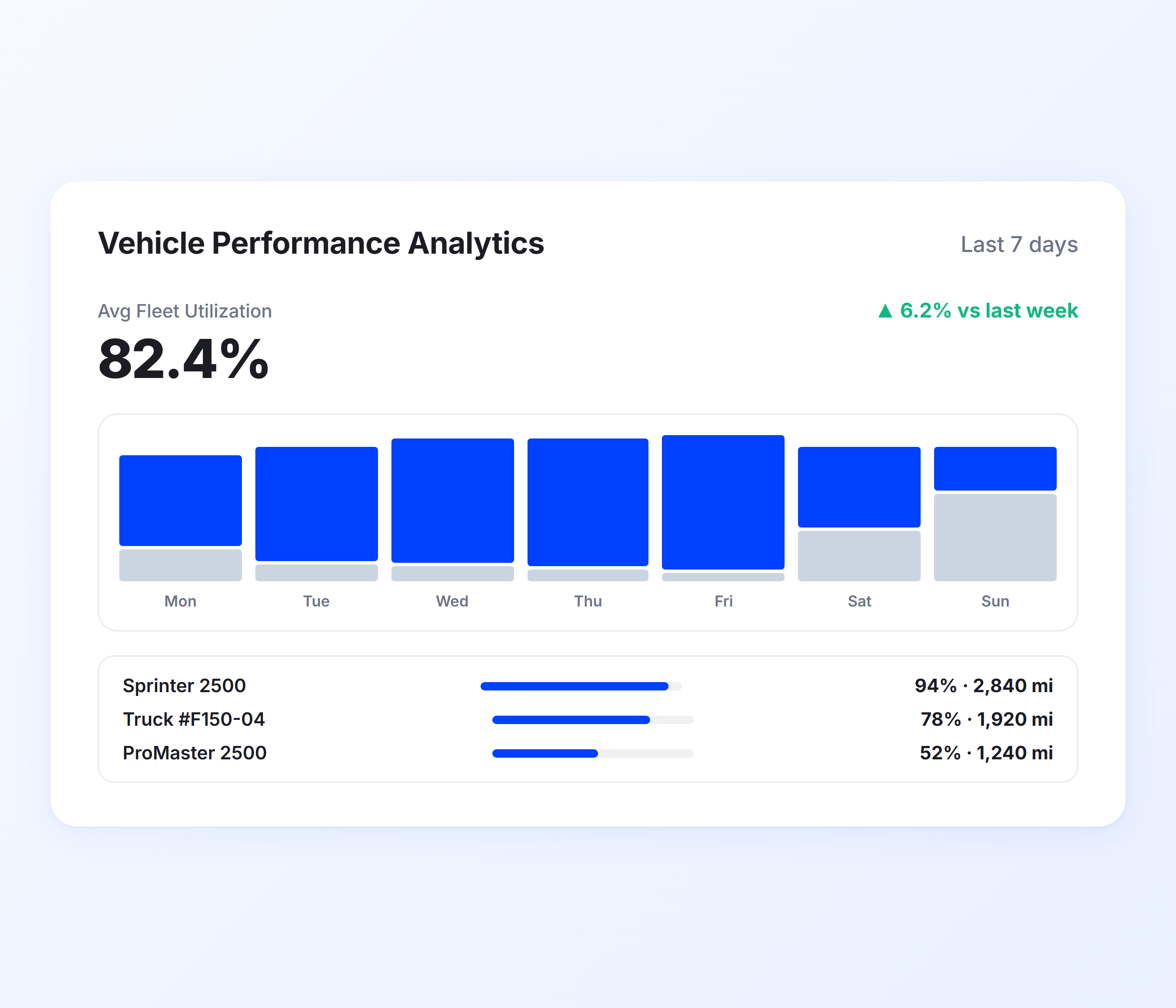
Fleet decisions require fleet data. Upper tracks mileage, fuel estimates, delivery completion rates, and utilization per vehicle so fleet managers can spot underperformers, justify replacements, plan fleet expansion, and prove ROI to stakeholders.
-
Per-vehicle mileage and fuel consumption tracking
-
Delivery completion rates by vehicle
-
Capacity utilization percentages per vehicle
-
Vehicle downtime and availability tracking
-
Cost-per-delivery estimates by vehicle
-
Comparison analytics across vehicle types
-
Exportable reports for fleet planning decisions
Get Full Visibility into Your Fleet with Upper
Set up your vehicle profiles once. Upper keeps them organized, enforces capacity limits, tracks assignments, and gives fleet managers a single dashboard for every vehicle in the operation.
Client Success Stories

“We used to spend 2 hours every morning planning routes in spreadsheets. Now it takes 10 minutes. Upper paid for itself in the first week.”


“What sold me was how easy it is to make changes. My schedules change a lot and I drag & drop stops and we’re back on track in 30 seconds. With our old software, that would’ve been an hour of replanning.”


“Our drivers actually follow the routes now. The app is simple, the navigation works, and they’re not calling me every 10 minutes asking where to go next.”

Vehicle Profile Features for Complete Fleet Visibility
- Route Integration
- Availability Management
- Compliance Tools
- Reporting
- Mobile Access

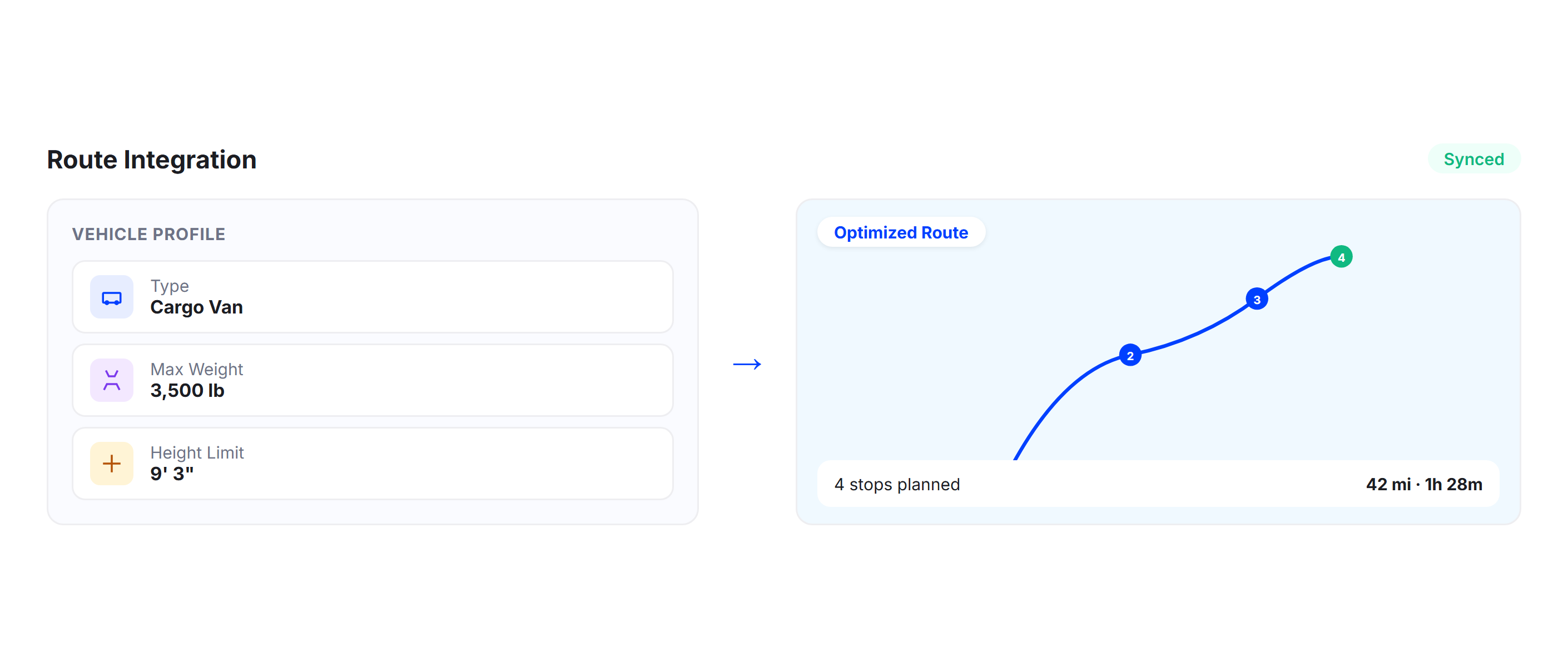
Route Integration
Vehicle profiles connect to Upper’s route optimization engine. Capacity constraints, dimension limits, and vehicle type preferences automatically shape routes, so fleet operations and route planning work from the same vehicle data.
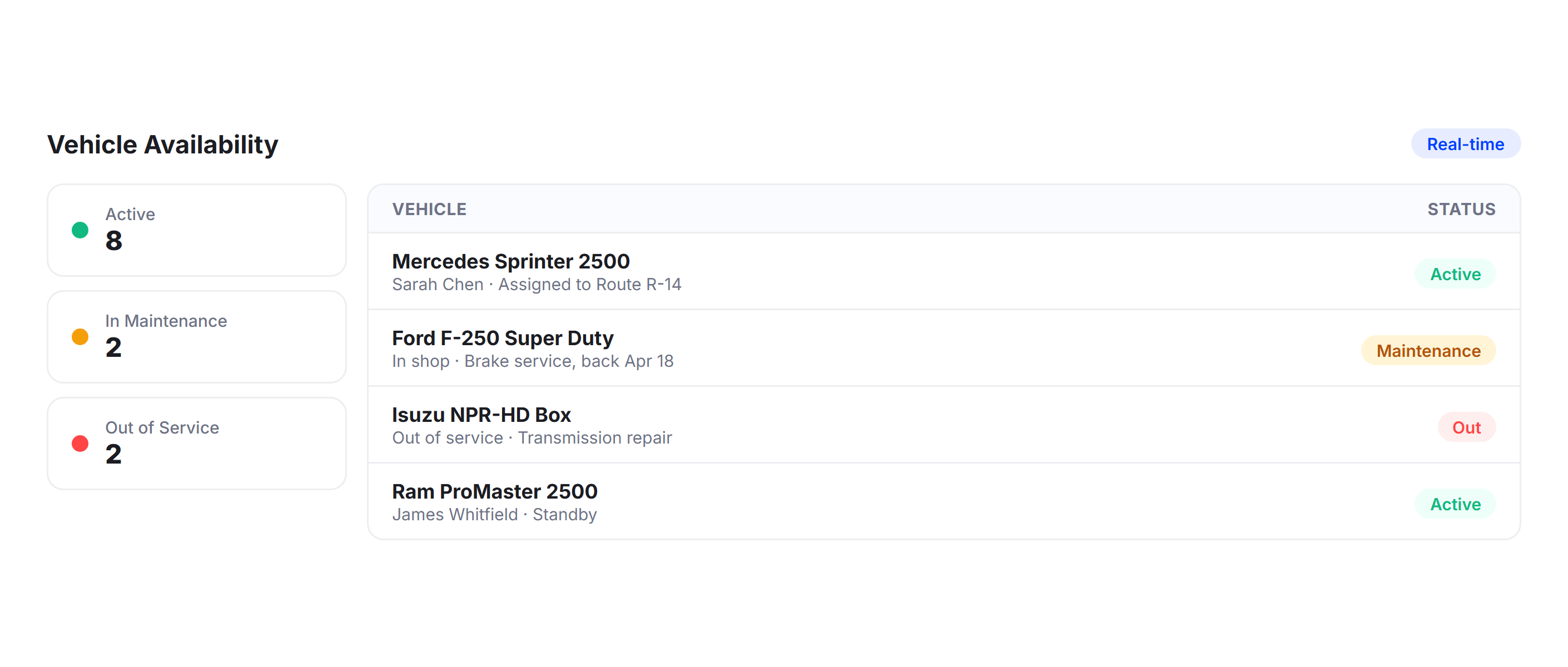
Availability Management
Mark vehicles as active, in maintenance, or out of service. Upper only dispatches available vehicles, so fleet managers never plan around a vehicle that is in the shop or already assigned.
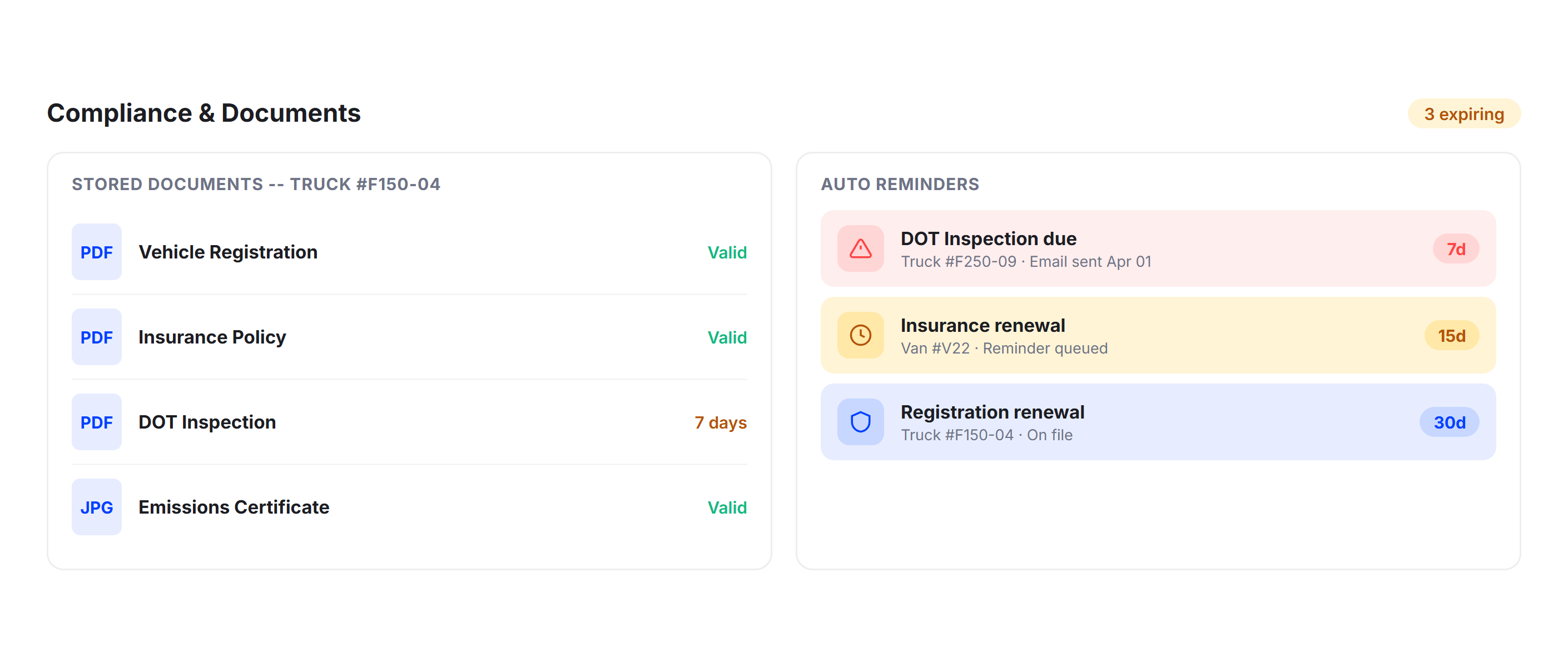
Compliance Tools
Store registration details, insurance documents, and inspection records per vehicle. Set automated reminders for renewals and inspections so compliance deadlines are tracked at the fleet level, not in someone’s personal calendar.
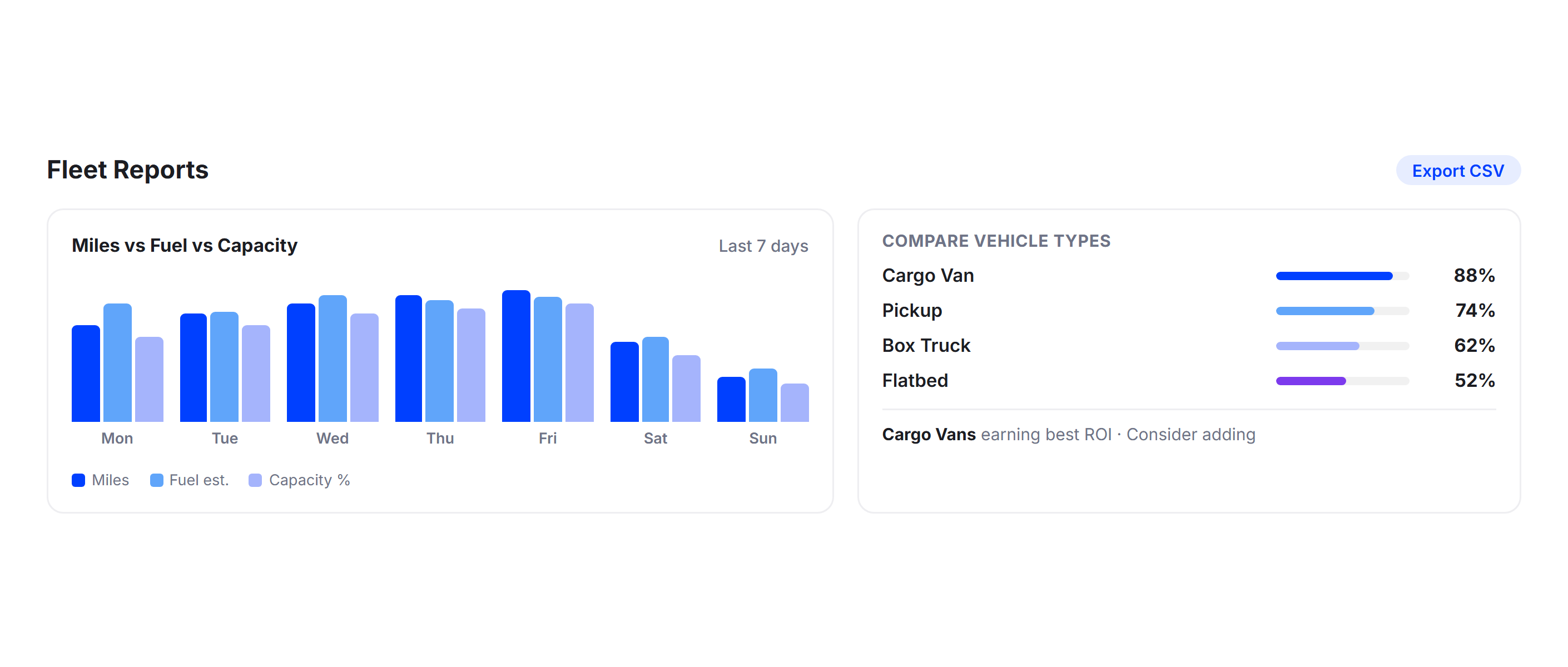
Reporting
Pull fleet-wide reports showing mileage, fuel estimates, capacity utilization, and delivery completion rates. Compare vehicle types side by side to inform fleet purchasing and retirement decisions.
Mobile Access
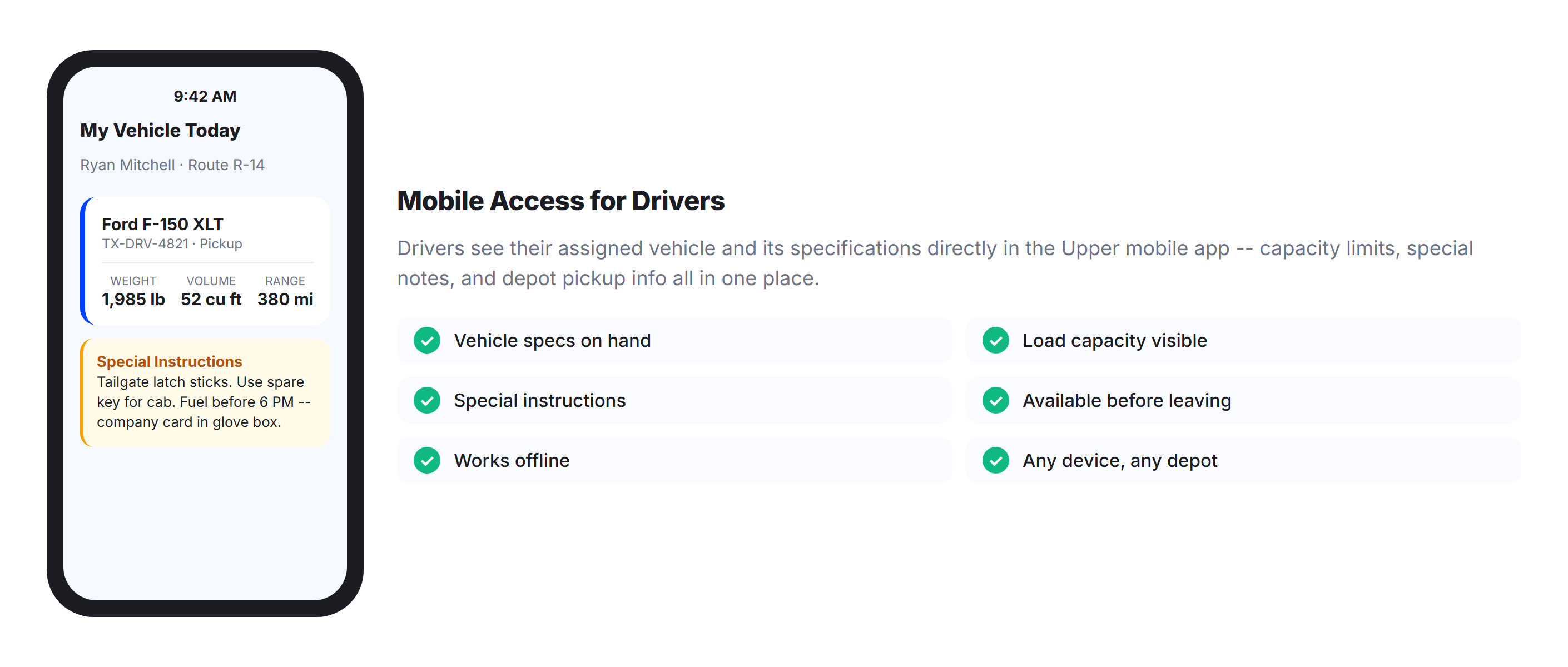
Drivers see their assigned vehicle and its specifications directly in the Upper mobile app. Vehicle details, load capacity, and any special instructions are available before they leave the depot.
Why Fleet Managers Choose Upper for Vehicle Profiles

One System for Every Vehicle
Stop tracking vehicles across spreadsheets, emails, and paper files. Upper gives every vehicle a structured, centralized digital profile accessible from one fleet management dashboard in real time.

Prevent Overloads Before They Happen
Capacity limits are enforced at the profile level. Dispatchers see utilization percentages before vehicles leave the yard, and the system flags anything that would exceed a vehicle’s limits.

Manage Mixed Fleets Without Complexity
Cars, vans, box trucks, and cargo bikes all live in one platform with type-specific profiles. Fleet managers handle the full mix from a single view without separate workflows per vehicle type.

See Fleet Utilization Clearly
Vehicle analytics show which vehicles are underused and which are at capacity every day. Make data-backed decisions about fleet sizing, vehicle replacement, and asset allocation.

No Hardware Required
Upper is software-only. No GPS devices to install, no telematics hardware to maintain. Set up vehicle profiles from your browser and start managing your fleet in minutes.

Scale as Your Fleet Grows
Add new vehicles with a profile that takes two minutes to create. Upper scales from five vehicles to 50 without added complexity, additional training, or system changes.
Sync Your Vehicle Data with the Tools You Already Use


Stop Managing Your Fleet from a Spreadsheet
Organize, track, and manage every vehicle with Upper. Structured profiles, enforced capacity limits, real-time assignments, and fleet-wide analytics that replace guesswork with control.
Frequently Asked Questions
-
Can Upper handle a mixed fleet with different vehicle types?
Yes. Upper supports cars, vans, box trucks, cargo bikes, and any other vehicle type in a single fleet. Each vehicle gets its own profile with type-specific capacity, dimensions, and operational preferences. Fleet managers see the full mix organized on one dashboard and can filter by type, status, or capacity to find the right vehicle for any job.
-
Do I need GPS hardware or telematics devices to use vehicle profiles in Upper?
No. Upper is a software-only platform. You set up vehicle profiles through your browser, and drivers use the Upper mobile app for navigation and proof of delivery. There is no hardware to purchase, install, or maintain. If you already use telematics or fleet tracking hardware, Upper can integrate with your existing tools through API connections.
-
How long does it take to set up vehicle profiles for my fleet?
Most teams set up their entire fleet in under an hour. You can create profiles individually through the dashboard (about two minutes per vehicle) or bulk-import your fleet from a CSV or Excel spreadsheet. Once profiles are created, they immediately feed into dispatch, capacity management, and fleet reporting.
-
How does Upper prevent vehicles from being overloaded?
When you set capacity limits in a vehicle profile (weight, volume, or item count), Upper enforces those limits during dispatch. The system distributes stops across vehicles to stay within each vehicle’s capacity and flags any assignment that would exceed limits before the vehicle leaves the yard. Fleet managers see capacity utilization percentages for every vehicle before dispatch.
-
Can I assign specific drivers to specific vehicles in Upper?
Yes. Upper links driver profiles to vehicle profiles from the fleet management dashboard. You can set default assignments so the same driver always gets the same vehicle, or reassign vehicles on the fly when schedules change. The system shows which drivers are assigned to which vehicles in real time and maintains an assignment history for accountability and compliance.