


- Set daily capacity first, so you know how many days the stop list needs.
- Carry forward only stops whose release dates and latest acceptable delivery dates allow the move.
- Plan each day below full capacity, so a late route or rush order has somewhere to go.
- Replan only the remaining stops when a day breaks, and keep confirmed days stable.
- Distinguish preferences from immovable receiving hours, booked appointments and other hard commitments.
To schedule deliveries across multiple days, work out how many stops your drivers can finish each day. Group stops by zone and urgency. Reserve capacity for fixed commitments, then carry eligible flexible stops to the next date that meets their delivery deadlines. Repeat until every stop has a date, and replan the remaining stops when a day breaks.
This guide is for dispatchers and operations managers who run their own drivers or crews. It covers planning across several days. For building and closing a single day, see Upper’s daily delivery scheduling playbook. If you are waiting on a delivery from a store or carrier, their booking options set your date.
What changes when deliveries span several days?
A multi-day schedule is one plan that keeps moving. A single-day route may also change, but a multi-day plan must account for those changes across future dates. Three things make the longer plan harder:
- Leftovers compound. An unfinished day 1 route becomes extra load on day 2.
- Customers know their date in advance. Moving a customer from Thursday to Friday breaks a promise they are planning around.
- Capacity keeps changing. A driver who calls out, or a route that runs long, shrinks a day you already filled.
So the job isn’t only spreading stops across the week. It’s keeping that spread accurate once the week starts.
How do you schedule deliveries across multiple days?
You schedule deliveries across multiple days in seven steps. Here they are at a glance:
- Collect every stop with its time window and urgency.
- Calculate how many stops your team can finish per day.
- Group stops by zone or urgency, and set a tie-break rule.
- Fill day 1, carry the overflow to day 2, and repeat.
- Confirm each stop’s date with the customer.
- Send customer notifications on a set schedule.
- Track each day against the plan and replan the remaining stops.
1. Collect every stop with its window and urgency
Put the full stop list in one place before you assign any days. Each stop needs an address, the items and load size, a release date, a latest acceptable delivery date, service duration, any delivery time window and an urgency flag. Import from your order system or a spreadsheet rather than retyping.
Mark which windows can move and which cannot. Receiving closures, access restrictions, perishability and booked appointments can create hard limits even without a separate contract. Keep those limits on a short list you validate before confirming a route. Flag recurring stops too, such as weekly or standing orders, because they get placed first.
2. Calculate daily capacity
Estimate daily capacity before assigning dates, then validate it against actual routes. Stop counts are a planning screen; they do not establish that geography, load and appointments fit. Use this rough formula:
Stops per driver per day = (shift minutes − fixed minutes) ÷ (drive minutes + service minutes per stop)
Fixed minutes cover loading, the drive out to the first stop and back, and breaks. Service minutes are the time spent at each stop, such as parking, unloading and getting a signature. Multiply the result by the number of drivers working that day.
Choose a buffer based on variation in your routes. The example below uses 90% as an illustrative planning choice, not a universal target. Subtract recurring stops from each day’s number before you add anything else. Vehicle space is a hard limit too. A full van can’t take another stop, whatever the sequence says.
Check the rules that apply to your drivers. Available working time must include applicable breaks, rest and driving limits. Use the FMCSA hours-of-service summary for covered US operations and confirm the rules applicable to your fleet. A scheduling estimate does not establish compliance.
3. Group stops by zone or urgency, and set a tie-break rule
Grouping stops by area keeps each day’s routes tight. Urgency decides which stops can’t slide to a later day. These two goals sometimes conflict, so decide in advance which one wins.
For example: “Urgent and fixed-deadline stops first, then whole zones, then everything else.” Write the rule down once and apply it every day. That way, nobody makes the call stop by stop.
4. Fill day 1, carry the overflow to day 2, repeat
Plan one day at a time. Optimize day 1 against the capacity from step 2, and leave any stop that doesn’t fit unassigned. Add those stops to day 2’s list along with day 2’s new orders. Then optimize again, and repeat until every stop has a date.
This carry-over method makes the backlog visible. Before approving each day, validate its actual routes against travel, service, breaks, load and hard commitments. If a stop cannot fit before its latest acceptable date, arrange capacity or agree a new commitment instead of carrying it forward silently.
5. Confirm the date with the customer
Once a stop has a day, tell the customer the day and the window. Ask them to flag a problem early. A customer who can’t be home is cheaper to move now than after a failed delivery attempt.
If they change the date, update the stop’s day and window before the next planning run. Record whether the agreed window is flexible or binding. An estimated arrival time is not the same as permission to miss an agreed receiving limit.
6. Send customer notifications on a set schedule
Multi-day customers usually need four messages:
- Confirmation when the stop gets its date.
- Reminder a day or two before.
- On the way when the driver is heading to them or close by.
- Completed once the delivery is done.
Proof of delivery (POD) is a photo or signature captured in the driver app. It backs up that last message if a stop is disputed. For setup ideas, see this guide to automated delivery status notifications.
7. Track each day against the plan and replan the remaining stops
Watch progress from the first stop. A stop may run long, a customer may cancel or a rush order may land. When that happens, re-optimize only the stops still to run. Don’t rebuild the whole week.
Unfinished work joins a later date only if its delivery limits allow the move; otherwise it needs an exception decision today. Tell those customers about the change before they wait in for a delivery that won’t come.
Worked example: 200 backlogged stops over four days
Here is a simple, made-up example. The numbers are assumptions chosen to show the method. They are not results from an Upper customer.
Inputs
- Backlog after a holiday weekend: 200 stops, 30 of them urgent.
- New orders: 25 a day on days 2 to 4.
- Drivers: 3 per day, each on an 8-hour (480-minute) shift.
- Fixed minutes per shift: 45, assumed to include 30 minutes of breaks and 15 minutes for loading plus depot travel. Use your actual allowance.
- Average minutes per stop: 6 driving plus 9 of service, so 15.
- The 30 urgent backlog stops are due on day 1. The others can be delivered by day 4. New orders are available on their arrival date and can be delivered by day 4.
- No additional recurring work is omitted. The counts assume compatible geography, load and windows; each dated route still needs validation before confirmation.
Capacity
- Stops per driver per day: (480 minus 45) ÷ 15 = 29.
- Planned at 90%: 26 stops per driver, so 78 per day across 3 drivers.
- The unbuffered count estimate is 87 a day (3 × 29), leaving a 9-stop planning allowance before route validation.
Carry-over plan
| Day | Stops on the list | Placed (plan: 78) | Carried to next day |
| 1 | 200 backlog | 78 (all 30 urgent + 48 by zone) | 122 |
| 2 | 122 + 25 new = 147 | 78 | 69 |
| 3 | 69 + 25 new = 94 | 78 | 16 |
| 4 | 16 + 25 new = 41 | 41 | 0 |
The count plan allocates all 275 stops (200 backlog + 75 new) by day 4. Day 4 has 37 stops of nominal room; confirm the actual route before accepting more work.
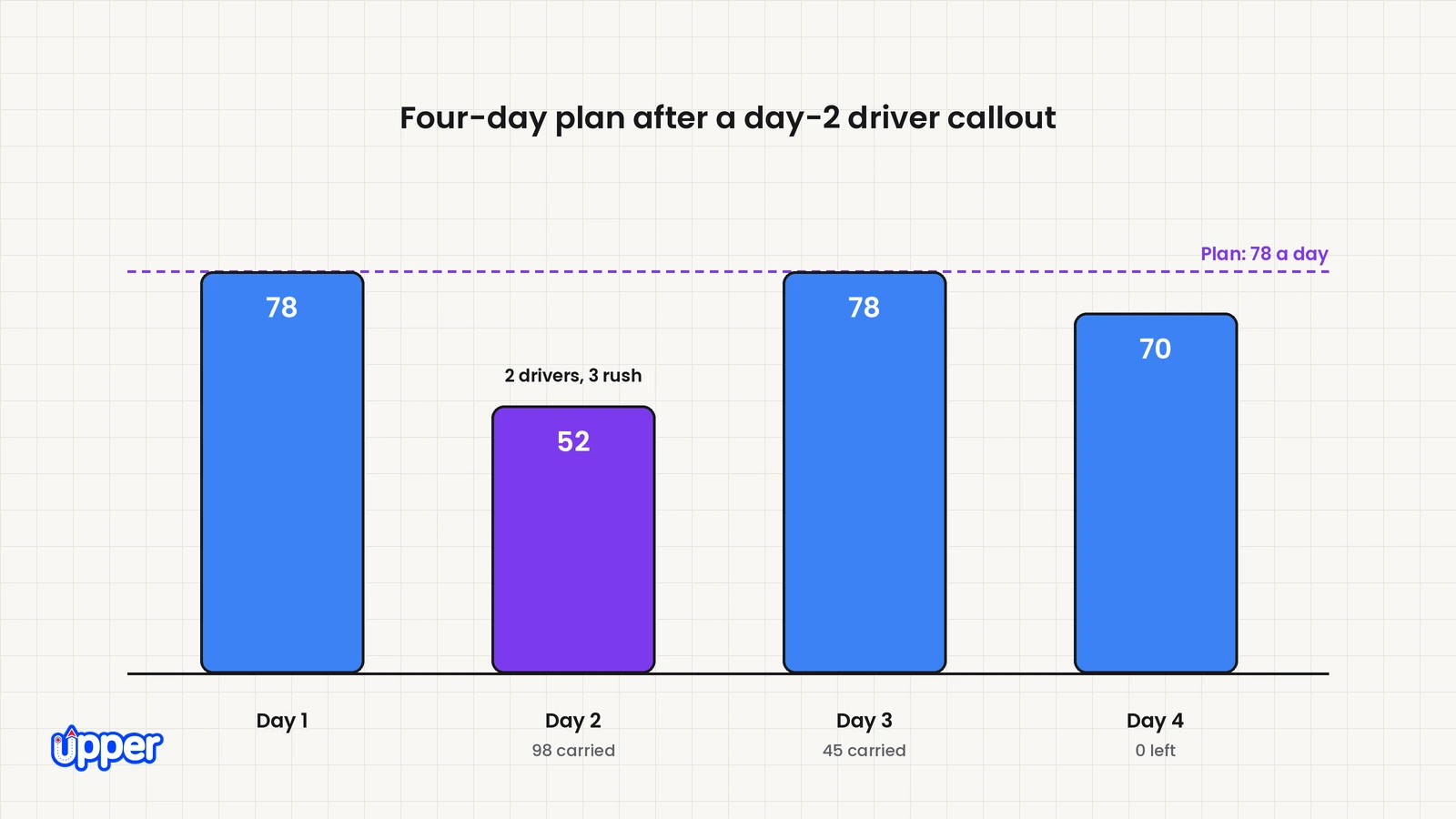
Day 2 breaks: one driver calls out and 3 rush orders arrive
Day 2 now has 2 drivers. Keep the same buffered target of 26 stops each, for 52 stops. Assume the 3 rush orders must finish on day 2 and the other affected customers can agree a later date by day 4.
| Day | Stops on the list | Placed in count plan | Carried to next day |
| 2 replanned | 147 + 3 rush = 150 | 52: 3 rush + 49 planned | 98 |
| 3 | 98 + 25 new = 123 | 78 | 45 |
| 4 | 45 + 25 new = 70 | 70 | 0 |
What to do with the result
- The revised count plan allocates all 278 stops across the 4 days, including the 3 rush orders. It retains the chosen buffer on day 2.
- 29 customers confirmed for day 2 must move: 78 planned minus 49 kept. Obtain any necessary agreement before changing their date.
- Keep immovable day-2 commitments in that day’s plan. If they exceed feasible capacity, arrange eligible cover or escalate the commitment rather than defer them automatically.
- Validate the revised routes on days 2, 3 and 4. Aggregate spare stops cannot establish that a distant zone or tight appointment fits.
Where this breaks: if new work keeps arriving faster than sustainable throughput, the backlog will grow. Investigate staffing, vehicles, loading delays, service duration and intake limits. Extra lead time alone cannot clear a persistent capacity deficit. Upper’s guide to orders exceeding fleet capacity covers immediate options.
Want to see this carry-over on your own stop list? Book a demo.
Which stops should move when a day overflows?
When a day can’t hold everything, move flexible stops first and keep deadline and urgent stops. Use this order:
| Stop type | Keep on today’s route? | Why |
| Contract or fixed deadline | Keep | Moving it breaks an agreement. Check these by hand before you approve any change. |
| Urgent or rush order | Review against hard commitments | Priority alone does not override an existing immovable deadline. |
| Confirmed for today with a preferred window | Keep if possible | Moving it breaks an expectation. If it must move, message the customer first. |
| In a zone mostly scheduled for tomorrow | Move first | It joins a tighter route tomorrow with little extra drive time. |
| Flexible, with no window | Move | It causes the least disruption to the customer. |
Every moved stop needs a recorded new date, so it doesn’t sit in limbo. Upper’s guide to resolving unassigned delivery orders explains how to work through that queue.
Which tool should you use to schedule deliveries across multiple days?
Choose the tool by how often your days change after you plan them. A spreadsheet works when the week rarely changes. A route planner suits route-dense days that mostly run as planned. Live dispatch helps when call-outs and rush orders are routine.
| Approach | What it decides | Best fit | Main limitation |
| Spreadsheet | Which stops go on which day, set by hand | Stop lists that rarely change week to week | Carry-over and every mid-day change are retyped by hand |
| Navigation app | The drive to the next stop | One driver who needs turn-by-turn directions | Doesn’t place stops across drivers or days |
| Route planner (such as Upper Crew) | Stop order and driver split for each dated route | Route-dense operations whose days mostly run as planned | The dispatcher moves overflow between dates |
| Live dispatch (such as AI Dispatcher) | Who serves each stop and when, with replanning as the day changes | Operations with frequent call-outs, rush orders or overflow | It proposes changes, and critical conflicts go to a person |
| Separate routing, dispatch and notification apps | Each app handles part of the workflow | Teams already committed to each tool | Confirm whether changes sync through a supported connection or require manual updates. |
How can Upper help with multi-day delivery scheduling?
Upper is route planning, route optimization and AI dispatch software for multi-stop delivery, collection and service teams. It helps in two places: planning each dated route, and replanning when a day breaks. Upper Crew plans and dispatches routes for teams. AI Dispatcher recommends who should take each stop and suggests recovery when the day changes.
Plan each day as its own route in Upper Crew
In Upper Crew, each route belongs to a single date. The steps below follow Upper’s help article on planning routes for multiple days:
- Create a route and add that day’s stops by file import, manual entry or saved contacts.
- Set the route’s Start date in the route builder.
- Run Optimize Route to sequence the stops, then save.
- Repeat for each additional day.
- Share each route to drivers now, or schedule the share ahead of the shift.
Drivers only see a route once it’s shared, so future days don’t clutter today’s work. To reuse a route on another date, use Duplicate Route and change the date. Upper can also split one day’s stops across several drivers, balanced by stop count, drive time or service time. Drivers capture photos, signatures and notes at each stop as POD, which comes with the Professional plan and higher.
One honest limit: the help article doesn’t describe an automatic carry-over of unassigned stops between dates. Plan on adding leftover stops to the next day’s route yourself, as in step 4.
Replan a day that breaks with AI Dispatcher
AI Dispatcher covers step 7. It checks which drivers can take a stop, based on skills, certifications, equipment and vehicle fit. Then it weighs travel time, availability, workload and the effect on each route.
Each recommendation shows the proposed driver, start and finish times, estimated travel and a confidence score. You can open the reasoning behind each match. When a driver can’t finish the day, you update their availability and get replacement suggestions for that day. Recovery runs with approval required, so it doesn’t change the plan on its own.
Stops that no eligible driver can take stay visible as unassigned. Your team can then arrange cover, offer another time or contact the customer. Upper’s recovery examples cover changes within the same day, so moving a stop to another date stays your decision.
Know what automation will and won’t do
- AI Dispatcher recommends and automates routine assignments. Your team sets the rules and reviews exceptions.
- Autopilot accepts only routine matches above a confidence threshold you choose.
- Critical conflicts are never accepted automatically, and recovery suggestions are reviewed before they apply.
- A confidence score describes match quality. It is not a probability of on-time delivery.
- Preferred arrival windows are preferences, not hard rules, so check fixed deadlines yourself.
- It does not replace the dispatcher, who still decides when work can’t fit.
AI Dispatcher may be more than you need. If your stop list rarely changes between Monday and Friday, planning each date in Upper Crew may be enough.
Confirm the functions your week requires
Check the Upper pricing page or your proposal for dated routes, recurring work, notifications and proof of delivery. If you also need AI assignment, confirm that scope separately. Test the actual transfer of jobs between any products you plan to use.
Bring a disruption into the demonstration: a reduced-capacity day, a fixed receiving deadline and stops that can move. Verify which changes the dispatcher makes manually.
Start with your own busiest week
Multi-day scheduling comes down to three habits. Set daily capacity before you assign dates, carry forward only stops whose deadlines allow it, and replan only the remaining stops when a day breaks. Test the method on your own busiest week, with your drivers, zones and deadlines, before you rely on it.

See it in action
See your own week planned across several days
Bring a recent week of orders and your driver schedules. We'll plan it by date and show what happens when a driver calls out.

Frequently asked questions about multi-day delivery scheduling
For a business with its own drivers, scheduling a delivery means choosing the day, driver and window for each stop. The choice depends on driver count, shift length, vehicle space and the customer’s preferred time window. On a multi-day plan, it also means carrying stops that don’t fit one day onto the next day’s list.
It depends on shift length and average minutes per stop. Subtract loading, depot travel and breaks from the shift. Divide what’s left by the average drive plus service minutes per stop. In the example above, a 480-minute shift with 45 fixed minutes and 15 minutes per stop gives an estimate of 29 stops. The fixed allowance includes breaks. Plan below the estimate and validate the actual route, load and deadlines.
There is no single rule. Place recurring and contract stops first, often weeks ahead. Give one-off stops a date once the order is confirmed. Send a reminder a day or two before. Finalize each day’s routes the day before, so drivers and customers get accurate times.
Each day inherits whatever the day before left unfinished. Capacity also changes when a driver calls out or a route runs long. So a plan built once for the week falls behind from its first morning. Replan the remaining stops each day, and keep already confirmed days as stable as you can.
Clarify the commitment with the customer. A preference may allow flexibility, while receiving hours, access restrictions, perishability or a booked appointment may create a hard limit. Software that treats a window as soft does not change the business commitment. Check immovable limits before approving the route and communicate any proposed change early.
Place recurring stops on their days before you schedule anything else. They use up capacity first, so subtract them from each day’s planned stops. Then fill the remaining room with backlog and new orders. If a recurring stop must move, treat it like any confirmed stop and tell the customer first.
Give the stop a future day and fill that day only up to its planned capacity. Stops that don’t fit carry forward to the next day’s list. Confirm the date with the customer when you assign it. Then send a reminder a day or two ahead, and an on-the-way alert on the day.


