


To avoid tolls on Google Maps, open the app, enter your destination, tap Directions, then tap the three dots > Options, and toggle “Avoid Tolls” on.
Google Maps will reroute you around all toll roads, bridges, and toll plazas. The same setting is available on desktop under Route Options by checking the “Tolls” checkbox.
But toggling a setting is the easy part. The real question most drivers face is whether avoiding tolls actually saves money once you factor in extra fuel, longer drive times, and road quality.
This guide walks you through the step-by-step setup on mobile and desktop, how to compare toll vs. toll-free routes before you drive, which navigation app handles toll avoidance best, and when paying the toll is actually the cheaper option.
Table of Contents
- How to Avoid Tolls on Google Maps Mobile App (Android & iOS)?
- How to Avoid Tolls on Google Maps Desktop?
- How to Find Alternative Routes on Google Maps?
- How to Compare a Toll Route vs. Toll-Free Route Before Driving?
- Is Avoiding Tolls Actually Cheaper? Toll vs. Toll-Free Cost Breakdown
- Google Maps vs Waze vs Apple Maps: Which Avoids Tolls Best?
- Challenges when Avoiding Tolls
- When Google Maps Isn’t Enough: How Do Delivery Drivers Plan Toll-Free Routes for 50+ Stops?
- FAQs
How to Avoid Tolls on Google Maps Mobile App (Android & iOS)?
Toll roads are a huge hassle, but avoiding them on your mobile device is a breeze with Google Maps. The mobile app makes it simple to route around tolls with just a few taps.
Ready to save some cash?
Step-by-Step Guide
Here’s how to avoid tolls on the Google Maps app for both iPhone and Android devices:
Step 1: Open the Google Maps app on your phone.
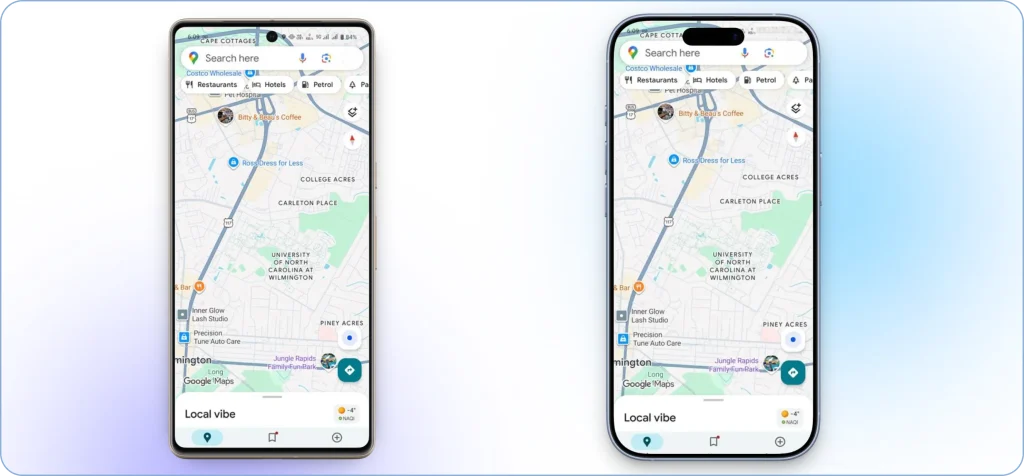
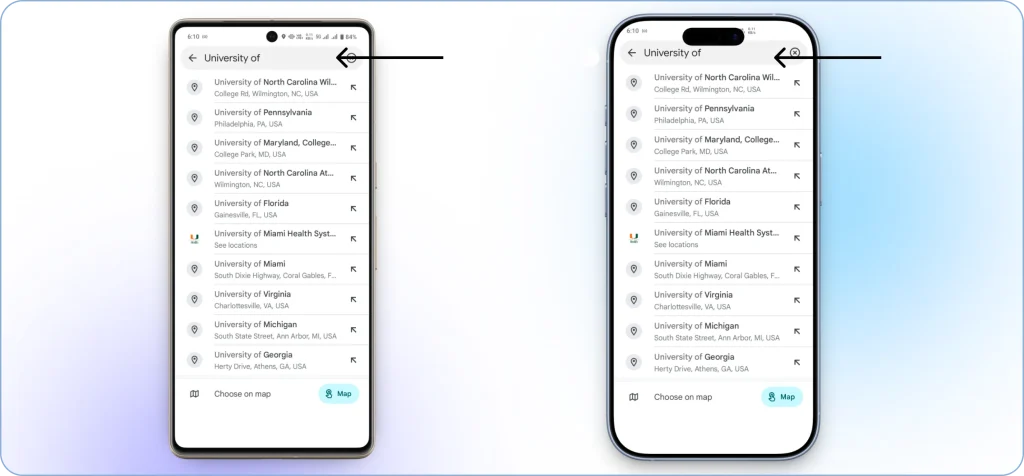
Step 2: Type in your desired destination in the search bar, and tap on it once it appears.
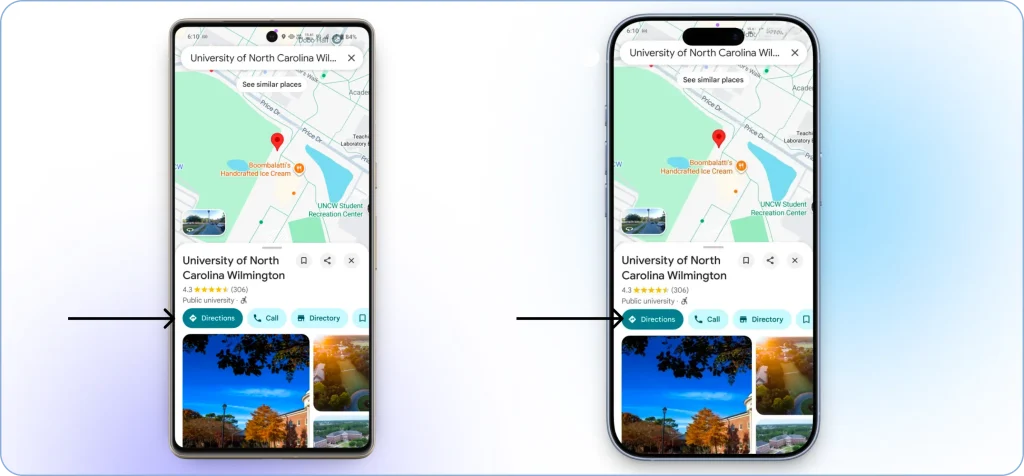
Step 3: Tap on the “Directions” button located at the bottom-left corner of your screen. This brings up the route from your current location.
Step 4: Select your preferred mode of transportation (car, walking, biking, or public transit).
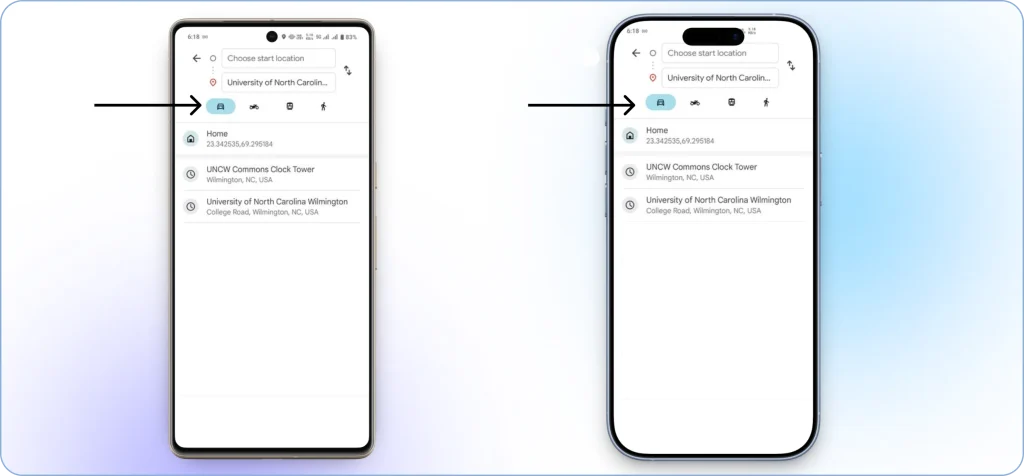
Step 5: Choose your starting location by either typing it in or allowing the app to use your current location.
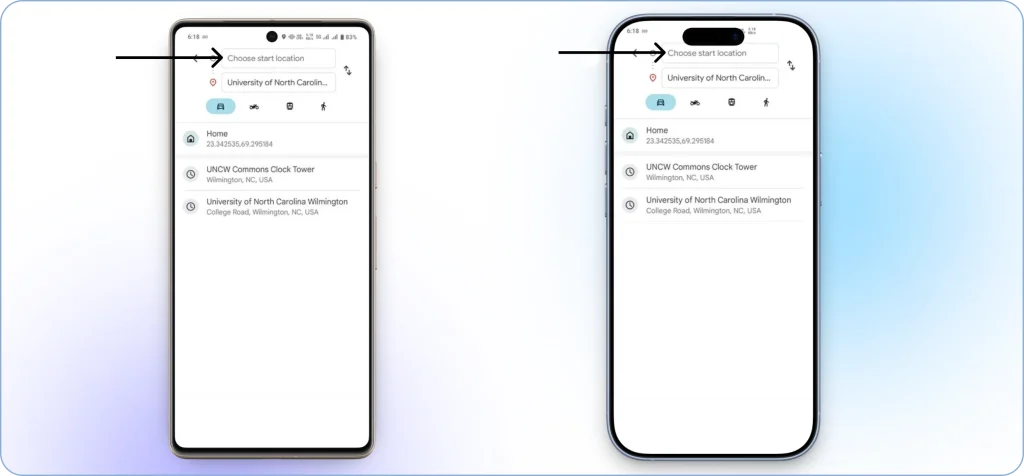
Step 6: Now, look for the three stacked dots located at the top-right corner of the screen next to your starting location.
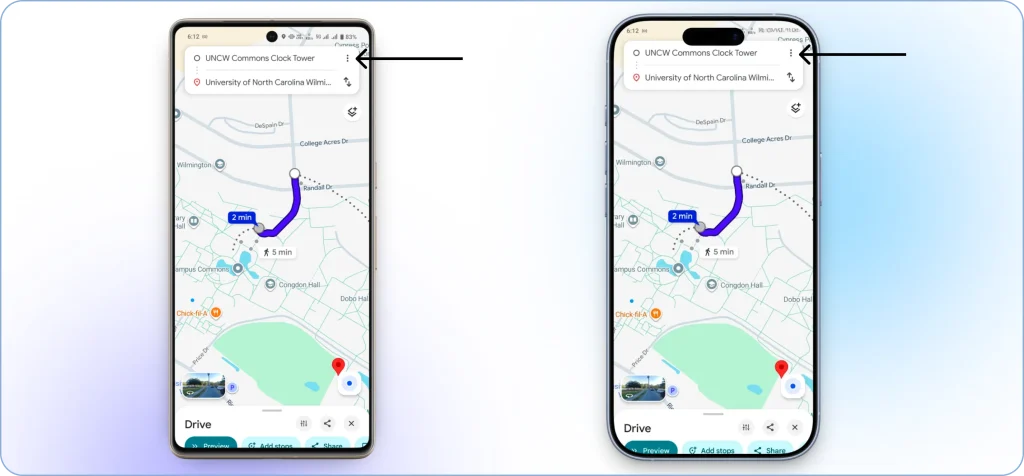
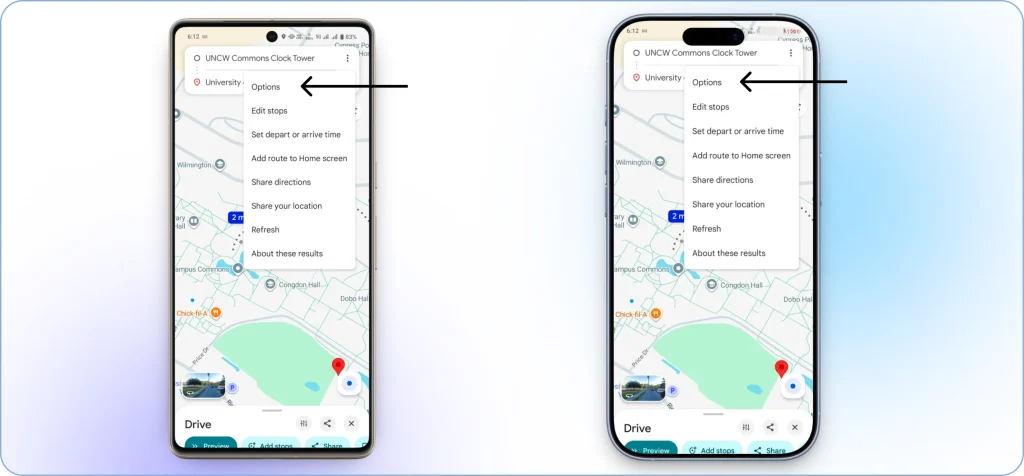
Step 7: Tap on the dots to reveal a menu, then select “Options.”
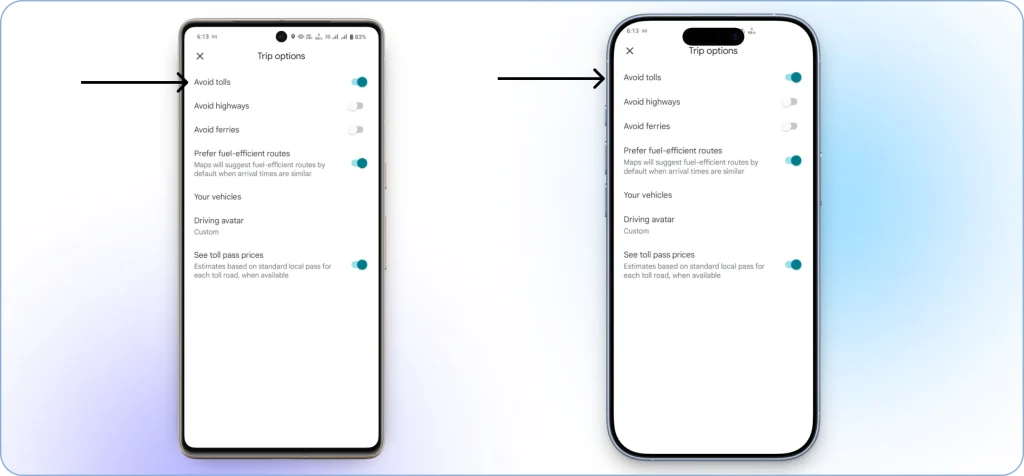
Step 8: In the “Trip options” menu, you’ll find a toggle switch labeled “Avoid tolls.” Toggle it on to instruct Google Maps to find a toll-free route.
Step 9: Once you’ve adjusted your settings, tap on the arrow icon to return to the main map screen. Then, tap the blue “Start” button at the bottom-right corner to start navigating.
And that’s it!
Google Maps will now always give you directions that avoid any toll roads or toll plazas along the way. You’re all set to navigate without handing over your hard-earned cash at a single toll booth.
If you’re looking for more ways to optimize your Google Maps experience, learn how to use Google Maps as a route planner for better trip organization.
If you prefer planning routes on a larger screen or want more control before you start driving, the desktop version of Google Maps offers a similar toll-avoidance setup.

See it in action
Avoiding Tolls on 100+ Stops? Upper is What You Need
Google Maps avoids tolls for single routes. But for multi-stop deliveries, you're stuck paying or planning manually. Upper optimizes unlimited toll-free routes in seconds.

How to Avoid Tolls on Google Maps Desktop?
Avoiding toll roads is just as easy on the desktop version of Google Maps. With a computer and internet access, you can conveniently route around tolls with a few simple clicks.
Step-by-Step Guide for Desktop Users
Follow these steps to avoid tolls when planning routes on Google Maps from your Mac or PC:
Step 1: Go to google.com/maps in your web browser to access Google Maps on your desktop.
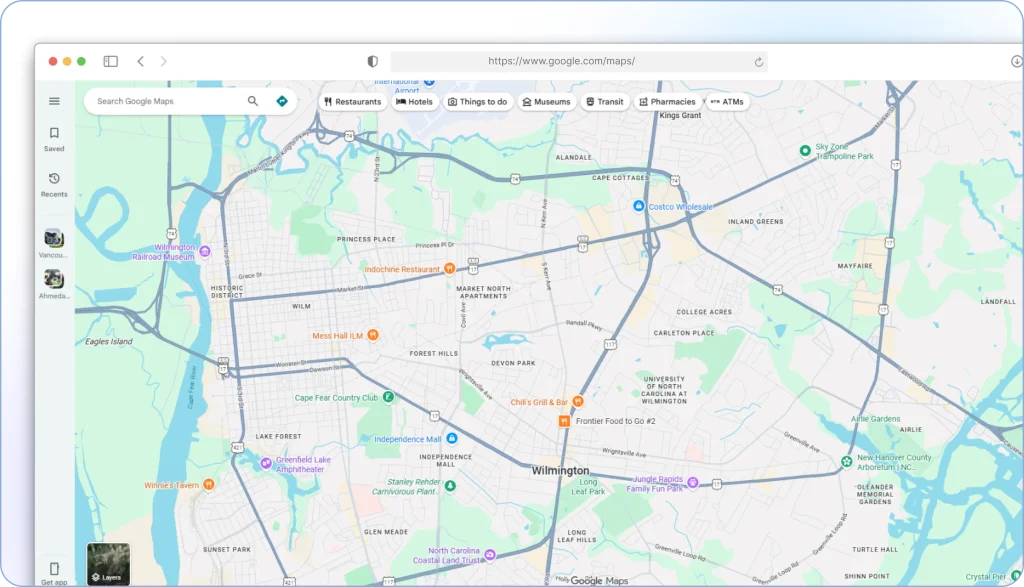
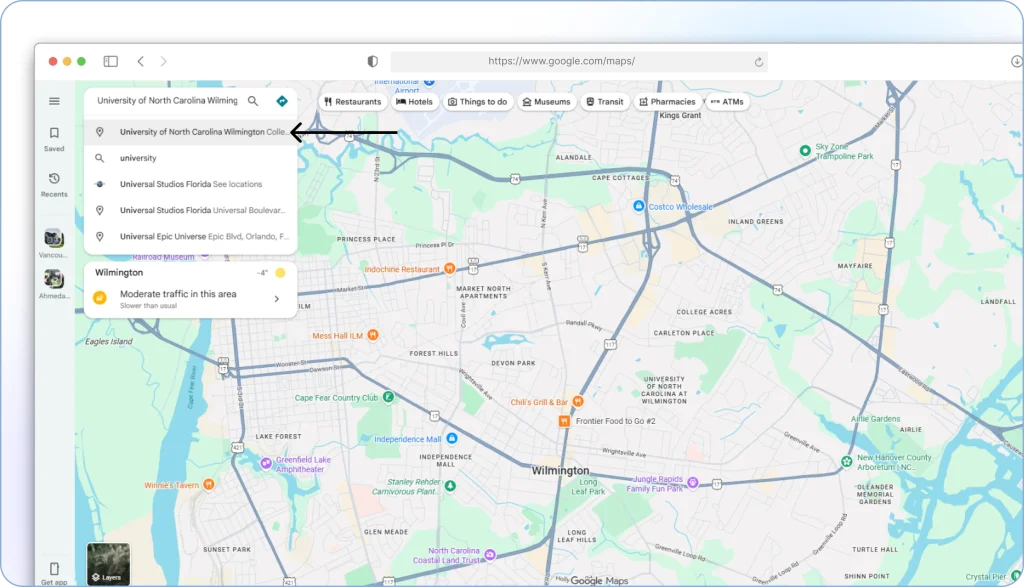
Step 2: Use the search bar to enter your destination. Click on the name when you see it appear in the dropdown menu.
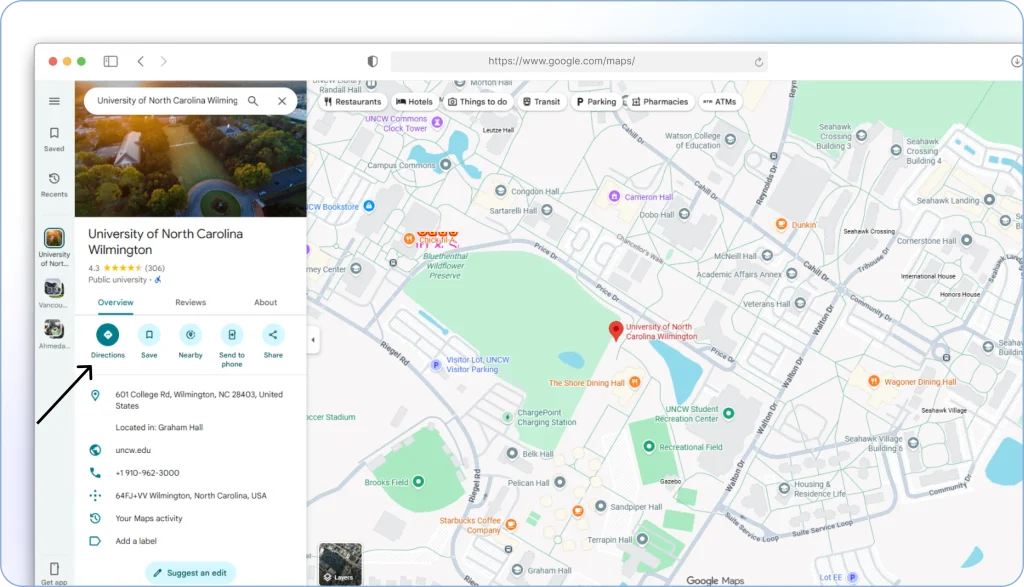
Step 3: Click the “Directions” button in the top left of the screen.
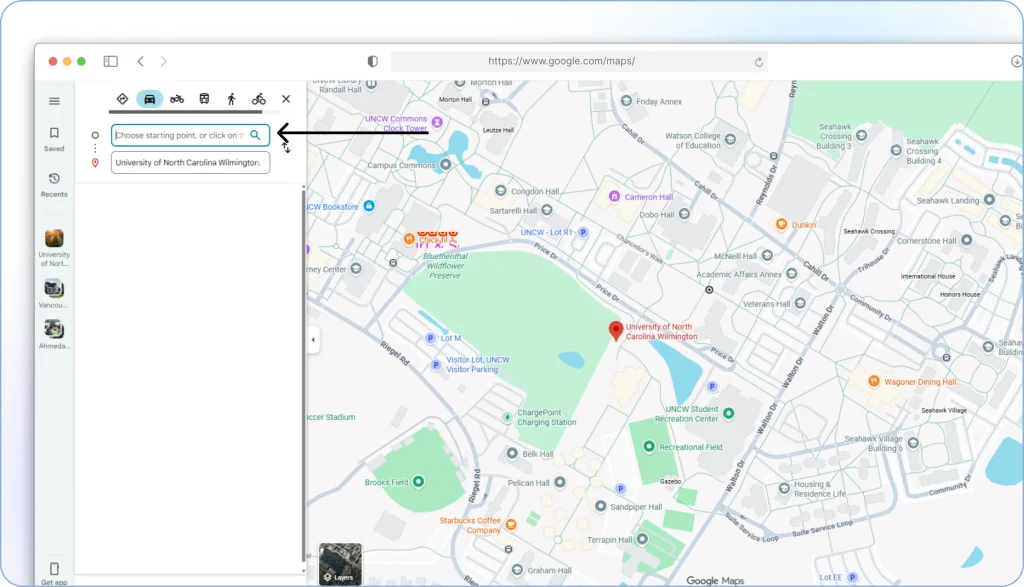
Step 4: Add your starting point by typing it in and selecting the correct location when it pops up.
Step 5: Below the suggested Google Maps route, on the left sidebar, click on “Options.”
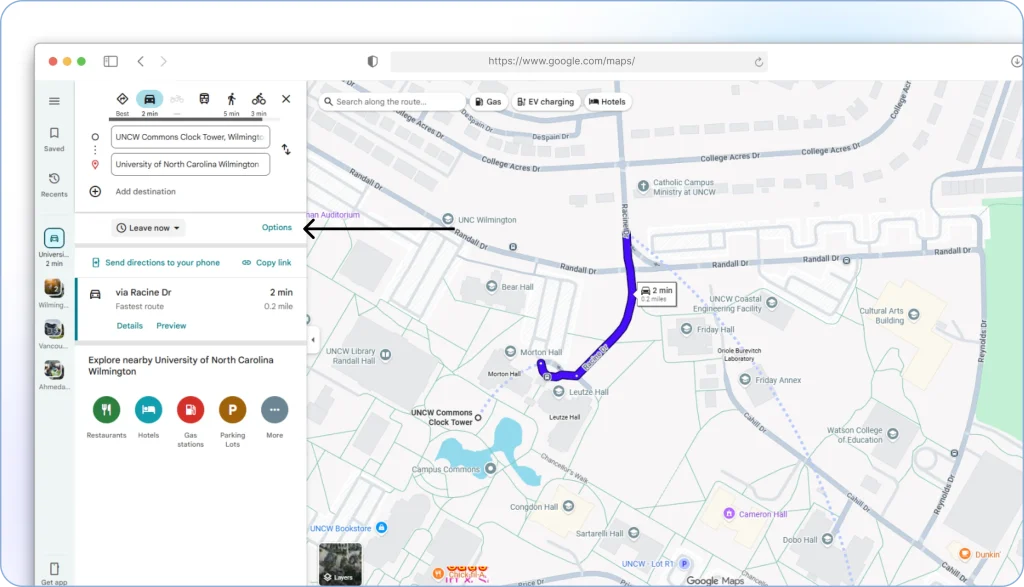
Step 6: In the “Route options” section, you’ll see a checkbox labeled “Tolls.” Check this box to instruct Google Maps to avoid toll roads.
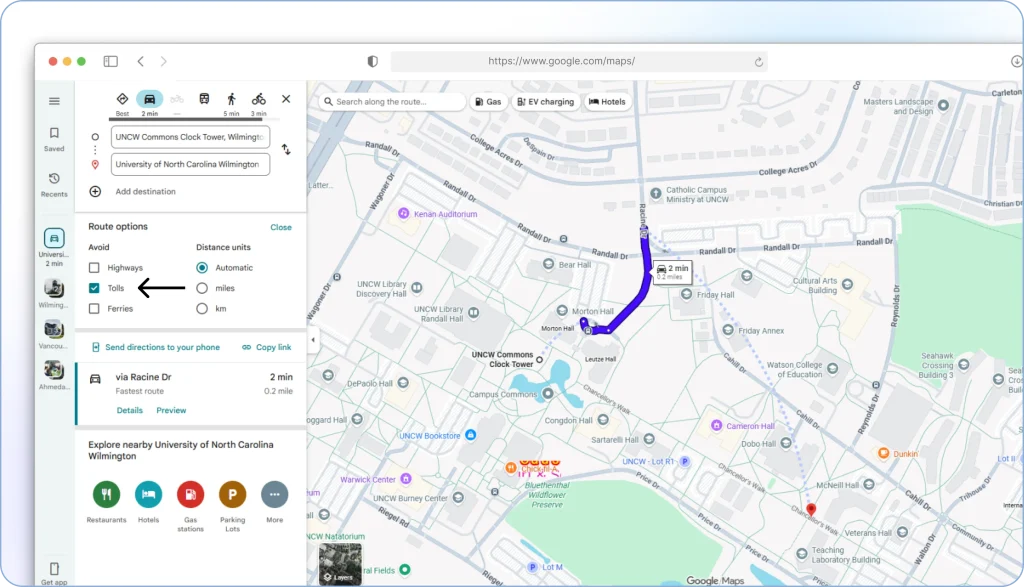
Step 7: Once you’ve selected the toll-free option, click “Close” to save your settings.
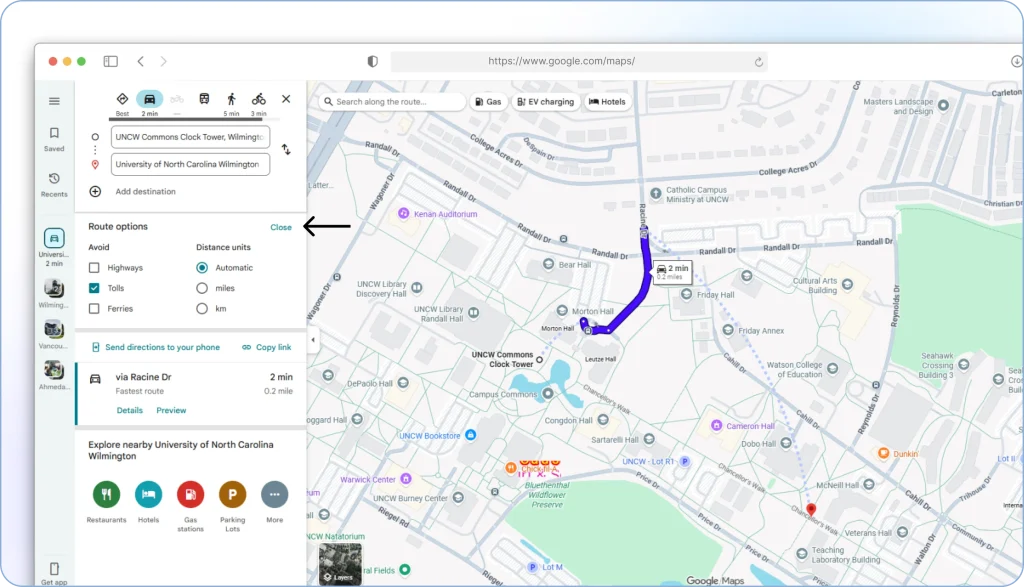
Google Maps will now display a toll-free new route for your journey.
It’s that easy to avoid handing over cash at toll plazas!
With just a few clicks, you can conveniently plan your road trip without tolls right from your desktop computer. You can also draw a route on Google Maps to visualize your journey before hitting the road.
While the steps differ slightly, the core toll-avoidance options remain consistent across platforms. Here’s a quick comparison to help you choose what works best for your planning style.
Upper provides an intuitive web app packed with AI-powered smart routing algorithms to make your journeys unforgettable. Register for free to see how it can transform your route planning.
| Feature | Mobile (Android/iOS) | Desktop |
|---|---|---|
| Access to Options | Tap three dots at top-right corner | Click “Options” on left sidebar |
| Toll-Free Setting | Toggle “Avoid tolls” switch ON | Check “Tolls” checkbox |
| User Interface | Touchscreen | Mouse and keyboard |
| Platform | Mobile operating system (Android/iOS) | Web browser |
Always Avoiding Tolls
If you want to avoid tolls every time you use the Google Maps mobile app, you can always set your preferences to avoid tolls so toll-free routes are always selected automatically. It is a convenient way to ensure that you never accidentally end up on a toll road.
Permanent Settings Configuration
Here’s how to configure Google Maps to default to avoid toll roads:
- Open the Google Maps app and tap your profile icon in the top left corner.
- Select “Settings” from the menu.
- Tap on “Navigation Settings.”
- Scroll down and tap “Route Options.”
- Toggle the switch next to “Avoid Tolls” to the on position.
Now Google Maps will always give you toll-free route options whenever you search for directions!
How to Find Alternative Routes on Google Maps?
Sometimes, you may not be happy with the route Google Maps shows you by default and want to explore the other routes (if any) to reach your destination. In that case, you may look for alternative routes in the following ways.
Method 1: Exploring Options
- Open Google Maps.
- If you want to start from where you are, you can go to the ‘From’ search field and select ‘Your Location’ to auto-fetch your current address. If you want to set some other location as your starting point, you can type in the first few letters of that address and select the right address from multiple suggestions.
Note: Your Google Maps must be able to access your current location. For this, you must go to your phone’s settings and turn on ‘Location access’ under ‘Privacy’.
- In the ‘To’ field, type the first few letters of your desired destination, and Google Maps will automatically suggest one or more similar addresses. You can then pick the exact location by clicking on it.
- Tap ‘Options’ under the ‘To’ field to open different route options. Turn on the slider against the option you want, such as ‘Avoid Highways’ or ‘Avoid Tolls’. Google Maps will show you the route that takes into account all such factors.
Method 2: Clicking Route Options
- Open Google Maps and enter your desired destination.
- Tap ‘Directions’.
- Google Maps will show you the chosen path in blue while the others greyed out.
If you want to take a certain route, you can click the desired greyed-out route, which will then turn blue.
Note: You will also notice that there is a route option with a green leaf, which implies that it is the most fuel-efficient route.
- You can tap ‘Start’ to follow this route and reach your destination.
How to Compare a Toll Route vs. Toll-Free Route Before Driving?
Before you commit to a toll-free route, it helps to see exactly what you are trading off. Google Maps makes this comparison possible if you know where to look.
Step 1: Search Both Versions of the Route
Enter your destination in Google Maps and get directions. First, leave the toll settings at their default (tolls allowed) and note the travel time and distance. Then, turn on “Avoid Tolls” in Route Options and note the new travel time and distance.
Step 2: Check Toll Prices Directly in Google Maps
Google Maps now displays estimated toll prices in the U.S., India, Japan, and Indonesia. After entering your route, look for the toll price displayed alongside the route summary. This gives you a concrete dollar amount to weigh against extra fuel and time.
Step 3: Calculate the Full Cost
A toll-free route that adds 30 minutes and 15 extra miles is not necessarily cheaper. Factor in:
- Extra fuel cost: Multiply the additional miles by your vehicle’s cost per mile (the average is roughly $0.15-$0.25/mile in fuel)
- Time value: What is your time worth, especially if you drive for work?
- Wear and tear: More miles mean more maintenance over time
If the toll is $3 and the detour costs $4 in fuel plus 25 minutes, the toll road is the smarter choice. If the toll is $12 and the detour only adds 10 minutes with minimal extra mileage, skipping the toll makes sense.
Step 4: Preview Traffic on Both Routes
Tap on each route to see real-time traffic conditions. A toll-free route through a city center might look shorter in distance but could double in time during rush hour. Check the traffic overlay (the colored lines on the route) before making your decision.
This quick comparison habit can save you hundreds of dollars over a year, especially if you drive the same routes regularly.
Is Avoiding Tolls Actually Cheaper? Toll vs. Toll-Free Cost Breakdown
The assumption behind avoiding tolls is simple: you save money. But that is not always true. The real question is whether the total cost of the toll-free route — fuel, time, and vehicle wear — ends up lower than just paying the toll.
What Toll-Free Routes Actually Cost You
Toll-free alternatives are typically longer and pass through more intersections, traffic lights, and lower-speed zones. This means:
- More fuel consumption: Stop-and-go driving uses significantly more fuel than steady highway speeds. A 20-mile detour through local roads can burn 30-40% more fuel than the same distance on a toll highway.
- More time on the road: The average toll-free detour adds 15-45 minutes per trip. For daily commuters, that is 5-15 hours per month of extra driving.
- Higher vehicle maintenance: More braking, accelerating, and navigating rough local roads accelerates wear on tires, brakes, and suspension.
A Real-World Example
Consider a daily commute from the suburbs to downtown:
- Toll route: 25 miles, 30 minutes, $4.50 toll each way ($9/day, ~$198/month)
- Toll-free route: 35 miles, 50 minutes each way
The toll-free route adds 10 miles and 20 minutes per trip. At $0.20/mile in fuel costs, that is $2.00 extra in fuel per trip ($4/day). You are only saving $5/day in tolls while spending an extra 40 minutes driving.
Over a month, you save $110 in tolls but spend $88 more on fuel and lose roughly 14 hours. Whether that trade-off is “worth it” depends entirely on your situation.
When Toll-Free Routes Save Real Money
Toll-free routes deliver the biggest savings when:
- Toll costs are high (over $8-10 per trip)
- The detour is short (under 10 extra minutes)
- You are driving during off-peak hours when traffic on local roads is light
- You drive a fuel-efficient or electric vehicle where extra miles cost less
When Paying the Toll is Actually Cheaper
Paying the toll makes more financial sense when:
- The detour adds significant mileage (15+ extra miles)
- You are driving during rush hour when toll-free roads are congested
- You drive a vehicle with high fuel costs (trucks, vans, SUVs)
- Your time has a dollar value (delivery drivers, service professionals)
For delivery businesses running multiple routes per day, the math gets even more complex, as toll costs multiply across every vehicle and every route.
Google Maps vs Waze vs Apple Maps: Which Avoids Tolls Best?
All three major navigation apps let you avoid tolls, but they handle it differently. Here is how they compare for drivers who want to minimize toll costs.
Google Maps
- Toll avoidance: Toggle “Avoid Tolls” in Route Options per trip, or set it permanently in Navigation Settings
- Toll price display: Shows estimated toll costs in the U.S., India, Japan, and Indonesia
- Strengths: Largest map database, reliable routing, shows toll prices upfront so you can make informed decisions
- Limitations: Cannot avoid specific toll roads (it is all or nothing), limited to 10 stops for multi-stop routes, no route optimization
Waze
- Toll avoidance: Go to Settings > Navigation > Toll roads, and select “Avoid toll roads”
- Toll price display: Shows toll prices in some regions
- Strengths: Community-driven real-time traffic data, strong at finding creative alternative routes, often finds faster toll-free options because of its crowdsourced data
- Limitations: Can be aggressive with rerouting through residential areas, no multi-stop route planning, toll price coverage is less consistent than Google Maps
Apple Maps
- Toll avoidance: Go to Settings > Maps > Driving & Navigation > Tolls (toggle on to avoid)
- Toll price display: Shows toll prices on supported routes
- Strengths: Deep integration with iPhone and CarPlay, clean interface, reliable toll avoidance
- Limitations: Smaller map database in some regions, fewer alternative route options, no Android support
Which Should You Use?
Bottom line: For most drivers, Google Maps offers the best overall toll avoidance experience because it shows toll prices and covers the widest range of roads. Waze is better if you want real-time crowdsourced rerouting. Apple Maps is the smoothest option if you live in the Apple ecosystem. None of them can avoid specific toll roads or optimize multi-stop toll-free routes.
Challenges when Avoiding Tolls
While avoiding tolls can save money, there are also some downsides to consider:
1. Longer travel times
Analyzing Time vs. Cost Trade-Off
Toll roads are often designed to offer faster and more direct routes, bypassing traffic congestion and urban areas. By opting for toll-free routes, you may encounter slower speeds, additional stops, or winding roads, resulting in longer travel times.
2. Cost Implications and Fuel Use
Toll roads often offer more direct routes with smoother traffic flow.
Calculating Potential Increases
On the other hand, toll-free routes may involve more frequent stops, intersections, or steep inclines, which can lead to increased fuel consumption.
Over longer distances, the additional fuel costs associated with navigating toll-free routes can offset any savings gained from avoiding tolls.
See it in action
Google Maps’ Users Won’t Believe It’s Possible!
You can minimize fuel costs and time even on toll-free roads. With Upper, you can create routes that account for distances from locations, speed, vehicle type, and start and end points.
3. Navigational and Road Challenges
Toll-free routes may take you through less-traveled roads or rural areas that could pose safety risks.
These roads may have narrower lanes, poorer signage, or inadequate lighting, increasing the likelihood of encountering road hazards such as potholes, wildlife crossings, or adverse weather conditions.
4. Limited navigation options
In some regions, particularly rural areas or less-developed countries, the availability of toll-free routes on navigation apps like Google Maps may be limited.
As a result, you may have fewer alternative roads to choose from, making it challenging to avoid toll roads completely.
5. Inconvenience and complexity
Opting to avoid tolls may introduce additional complexity and inconvenience to your journey.
Navigating through densely populated areas or navigating around toll plazas may require more frequent lane changes, turns, or detours, increasing the likelihood of encountering traffic congestion or road closures.
When deciding whether or not to avoid tolls, consider factors like:
- How much time you have for your trip
- If you’ll be driving at high-traffic times
- The cost of tolls versus gas for a longer route
- How convenient is the toll-free route?
- Your safety and comfort level
Even with some disadvantages, avoiding tolls is the best option for many drivers. Just weigh the benefits against the drawbacks, depending on your situation.
When Google Maps Isn’t Enough: How Do Delivery Drivers Plan Toll-Free Routes for 50+ Stops?
As we’ve seen, avoiding tolls in Google Maps is simple with just a few taps or clicks. But it’s good only for basic route planning. For power users and businesses that plan routes for commercial vehicles, Google Maps has clear limitations that can cost you time and money.
Google Maps Limitations for Multi-Stop Routes
- Routes are restricted to just 10 stops — not ideal for larger delivery operations
- No optimization based on priority stops or time windows — you’re stuck with Google’s fixed sequence
- No vehicle size restrictions — making it unsuitable for logistics that require tailored routing solutions
- No toll-avoidance combined with route optimization — you get one or the other, not both working together
For a detailed breakdown, check our Upper vs. Google Maps comparison.
How Do Delivery Teams Handle Toll-Free Routing at Scale?
When a delivery team runs 5 vehicles with 80 stops each, manually toggling “Avoid Tolls” in Google Maps for each route is not realistic. These teams need software that optimizes route order and avoids tolls simultaneously, something Google Maps cannot do.
This is where trip-routing software like Upper comes in.
How Upper Solves These Challenges
With Upper route planning software, you can:
- Upload unlimited stops easily from spreadsheets
- Create routes that avoid tolls and highways while optimizing for efficiency
- Optimize routes based on priority stops, time windows, and service times
- Integrate with other platforms you already use
- Customize routes focused on your priorities
- Optimize routes for time savings and fuel efficiency
Whether you’re an individual driver or a delivery manager, Upper gives you the advanced route customization that Google Maps lacks. It lets you tailor toll-free routes with its route planning tool, focused on what matters most – saving you time and money.
You can also explore how major carriers handle routing in our FedEx, UPS, and Google Maps comparison, or learn about the Google Maps Trip Planner for vacation planning.
Take control of your toll-free routing with Upper. Book a demo today.
Frequently Asked Questions
After setting the avoid tolls preference, verify it’s working by entering a destination and checking the route details.
Routes that include tolls will display “This route has tolls”, while toll-free routes will show “No tolls” or simply won’t mention tolls.
You can also check Route Options to confirm the toggle is enabled.
Google Maps does not allow you to avoid specific toll roads.
You can only choose to avoid all tolls or include them.
If you need to skip a particular toll road while keeping others, add a manual waypoint that forces Google Maps to route around that specific road.
Yes, Google Maps displays toll prices for routes in the U.S., India, Japan, and Indonesia on both iOS and Android devices.
To view toll amounts:
- Open Google Maps and enter your destination
- Select a route
- Tap the menu icon
- Go to Settings > Navigation > See Toll Prices
Toll amounts for roads and bridges along your route will be displayed.
Open Google Maps and enter your destination.
- Tap Directions
- Tap the three dots (⋮) > Options
- Turn on Avoid highways if you don’t want to use freeways or expressways
You can also enable Avoid tolls and Avoid ferries in the same menu for more customized routes.
Yes, Google Maps provides real-time traffic updates and suggests alternative routes to help you avoid congestion.
When planning your journey, it analyzes current traffic conditions including road closures, accidents, and traffic volume.
You can also check the traffic overlay on the map to see congestion levels before choosing a route.
Toll-free routes are typically longer, which means more time on the road, higher fuel consumption from stop-and-go driving, and increased vehicle wear.
In some regions, toll-free alternatives may take you through poorly maintained roads with narrower lanes.
There are also areas where no toll-free alternative exists, especially near certain bridges and tunnels.
Pay the toll when the toll-free detour adds significant distance, during rush hour, or when driving a vehicle with high fuel costs.
For delivery drivers and service professionals, a small toll that saves substantial time and fuel is usually worth paying.
Start by mapping your full route on Google Maps desktop and noting the default time and distance.
Enable Avoid Tolls and compare the difference.
Plan fuel and rest stops along the toll-free route and download offline maps for areas with poor cell coverage.
Avoid Tolls removes toll roads from your route but may still include free highways.
Avoid Highways removes freeways and expressways but may still include toll roads.
You can enable both settings at the same time.
Yes, the feature works reliably in most cases.
When enabled, Google Maps reroutes you around toll roads, bridges, and tunnels.
Always check for any “This route has tolls” warning before starting navigation.
Yes. Toll avoidance settings carry over to both CarPlay and Android Auto.
If you have Avoid Tolls enabled in Google Maps, the same preference applies when connected to your vehicle’s display.
Google Maps is highly accurate for well-documented toll roads in North America, Europe, and major Asian markets.
Accuracy may vary in regions where toll infrastructure is newer or less consistently mapped.
Savings depend on your route and driving frequency.
A daily commuter paying $6-10 in tolls could save $130-220 per month, while fleets may save hundreds or thousands of dollars monthly.
For a single trip, go to Route Options and toggle Avoid Tolls off.
To remove the permanent setting, go to Settings > Navigation Settings > Route Options and disable it there.
Yes. Google Maps supports up to 10 stops per route, and the Avoid Tolls setting applies across all stops.
However, it does not optimize stop order for efficiency.
For more than 10 stops or optimized toll-free routing, dedicated route planning software such as Upper is required.


