


Ever tried meeting someone at a location that doesn’t have a proper address? Or wanted to save a hidden parking spot you’ll never remember otherwise?
That’s exactly what dropping a pin on Google Maps solves.
A dropped pin marks any spot on the map, even if it doesn’t have a street address, business name, or landmark. Once dropped, you can save it, label it, share it with others, or get directions to it instantly.
This guide walks you through how to drop a pin on Google Maps across all devices, along with tips for organizing your saved locations and troubleshooting common issues.
Let’s start with the mobile app, which most people use for quick, on-the-go pinning.
Table of Contents
How to Drop Multiple Pins in Google Maps on Mobile (Android and iOS)?
Whether you have an Android or iOS device, Google Maps allows you to drop a location pin in minutes.
Here are the steps.
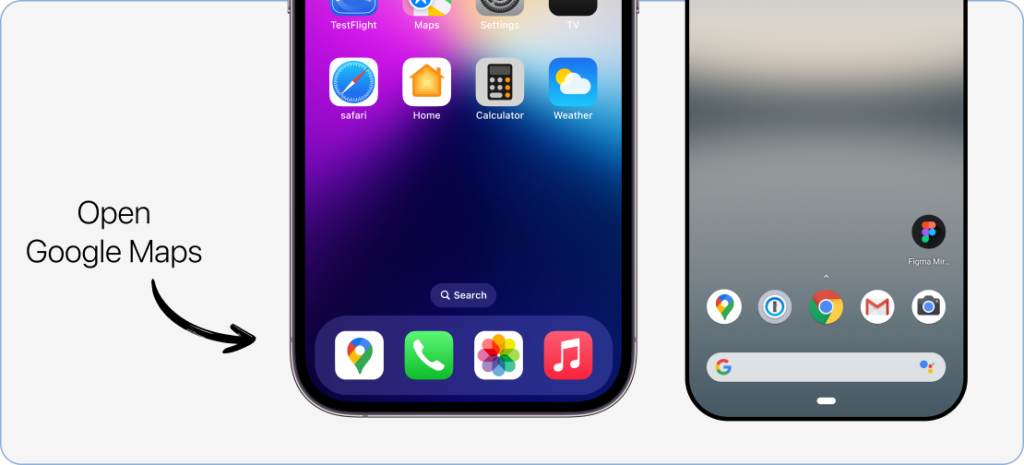
Step 1: Open Google Maps on your Android phone or iPhone.
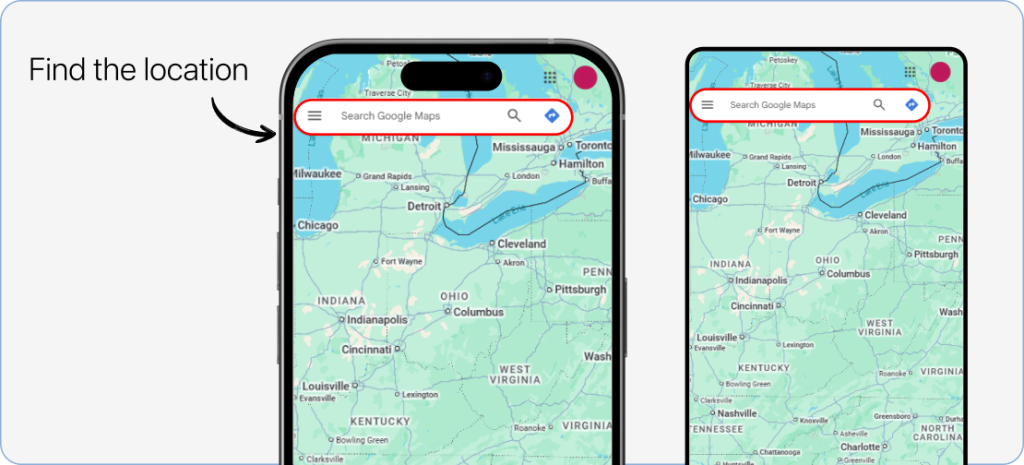
Step 2: Find the location where you want to drop the pin and zoom in as far as possible to view it.
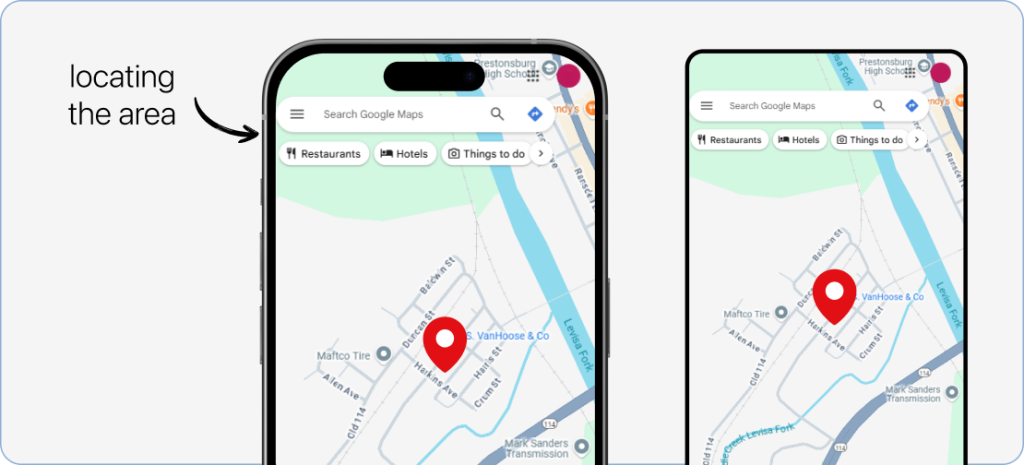
Step 3: Upon locating the area, long-press your finger on the location until you see the red pin pop up under your finger.
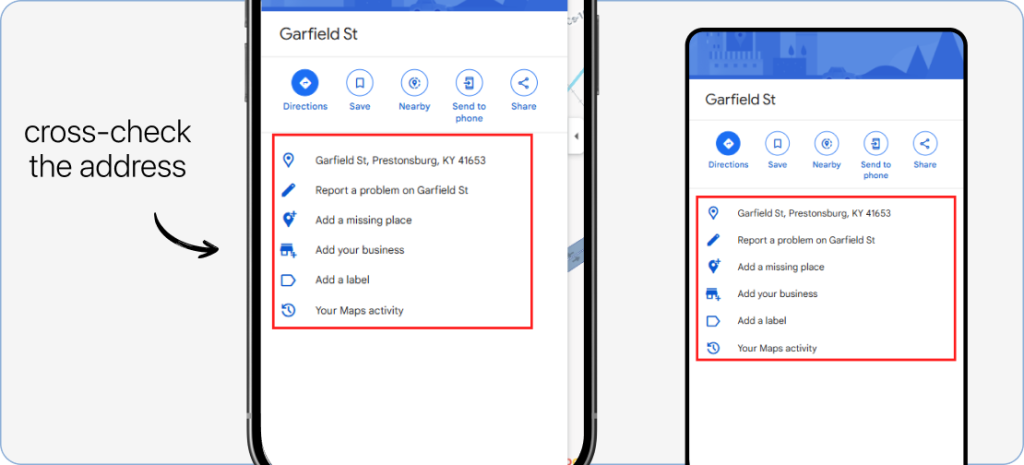
Step 4: To position the pin precisely, drag the pin to your desired spot. Tap on it to cross-check the address and relevant information of the location.
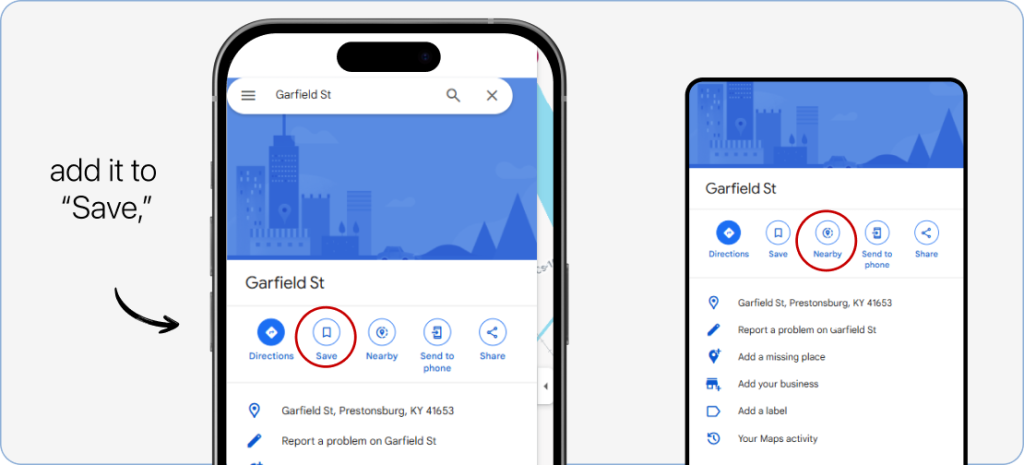
Step 5: Tap on the pin and click “Save”. You can access it in the information section at the bottom of the screen on Android.
If you have an iPhone, you can click “Labels” and save your dropped pin by a name.
Step-by-step process to create a new list on mobile
To give you an overview, a new list is a personalized collection of favorite places and destinations you want to go to. Basically, you can pin and save the locations under a label or list of your choice and access them anytime you need.
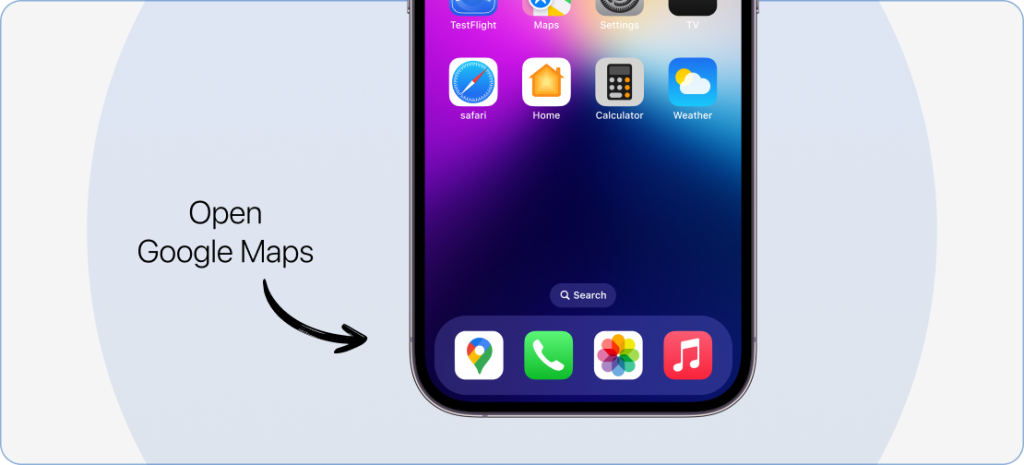
Step 1: Open the Google Maps mobile app on your smartphone.
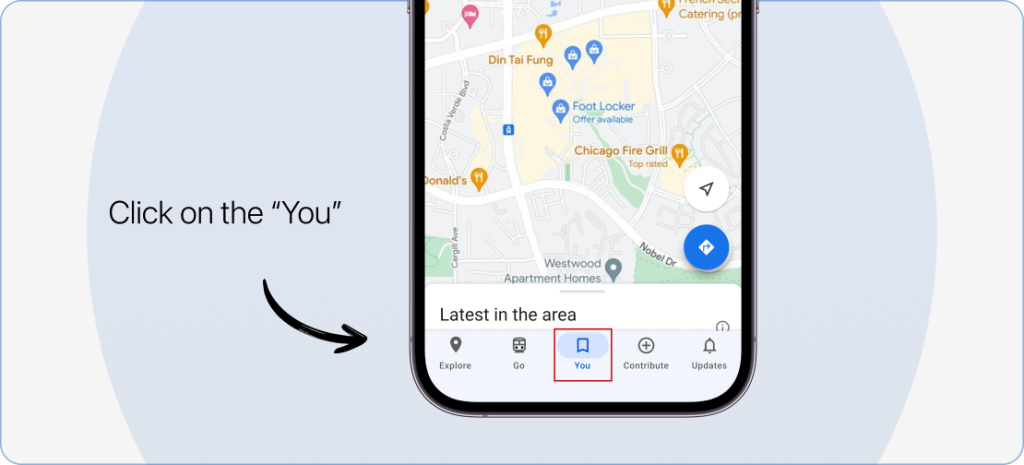
Step 2: Clicking on the “You” option positioned below in the centre.
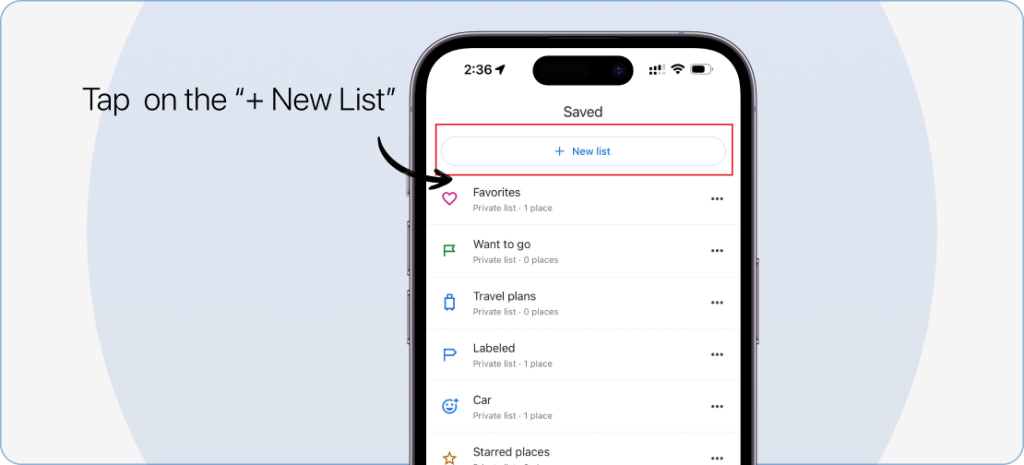
Step 3: Tap on the “+ New List” option at the top.
Now, all you have to do is name the label, write the description, and start adding the pins.
OR
Step 1: Open Google Maps on your mobile phone.
Step 2: Search the spot you want to add to the list manually by panning in the map or typing the location in the search bar.
Step 3: As you find the location, an information bar will pop up that will have “Save” in it.
Step 4: Click on it, and a menu bar will appear.
Step 5: At the top, you will have a “New List” option. Click on it, write the name and description, and that’s how you have your new label ready.
This was all about how to drop multiple pins on Google Maps Android and iPhone. Next, we will walk you through the steps of the desktop.
3 Steps to Drop A Pin on Google Maps from Desktop
Step 1: Go to Google Maps on your browser, zoom in, and navigate to the spot you want to mark.
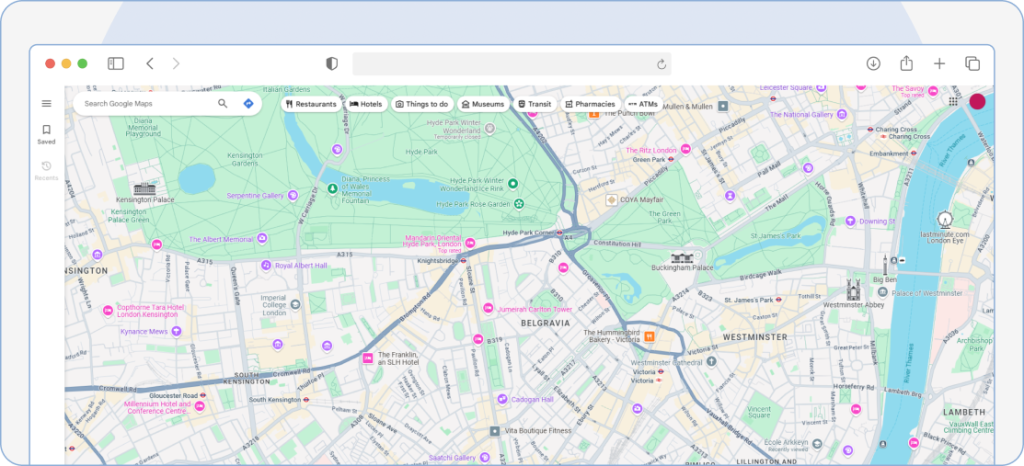
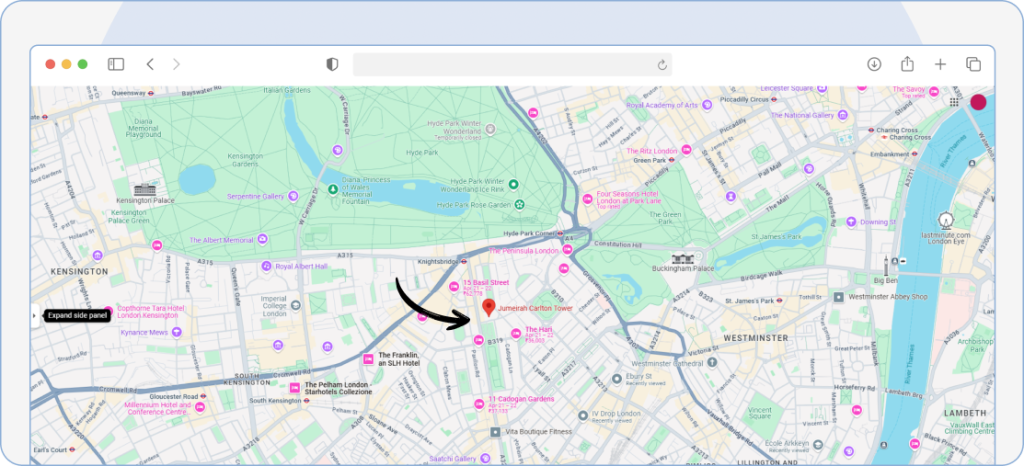
Step 2: Tap on that spot. You’ll notice a grey pin appear, and an info box will show up on the bottom of the screen.
If you click the blue navigation arrow, Google Maps will open the navigation page. Here, you can enter the start location and get directions.
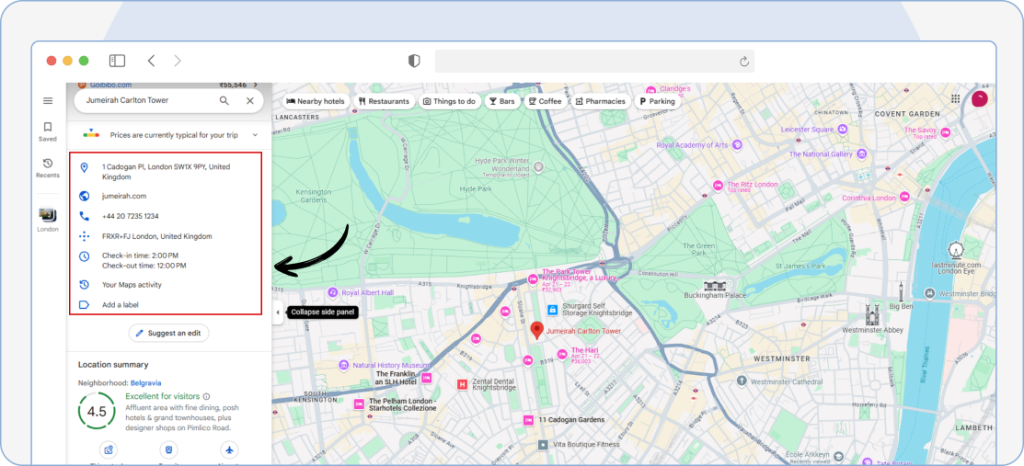
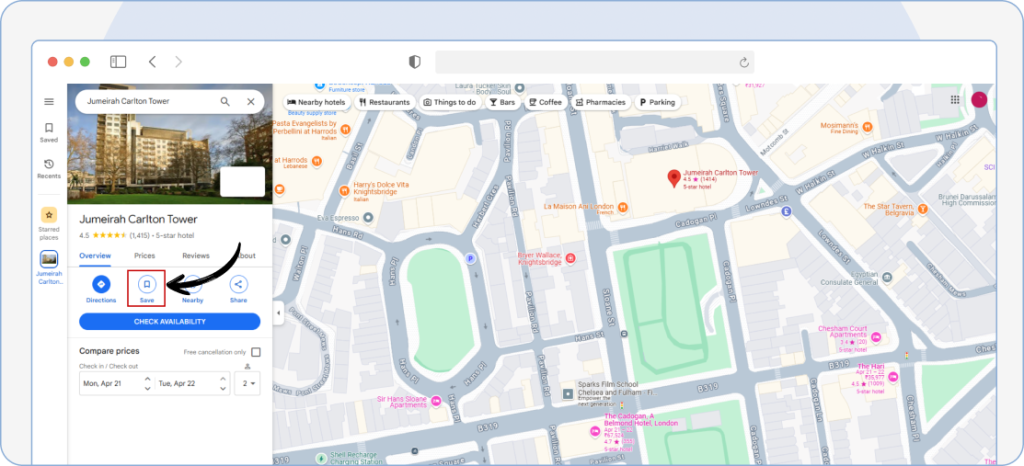
Step 3: Click “Save” from the pane that appears, and save it under any of the following:
- Favorites
- Want to Go
- Travel Plans
- Starred Places
- A New List
Step-by-step process to create a new list on desktop
Step 1: Open Google Maps on your computer.
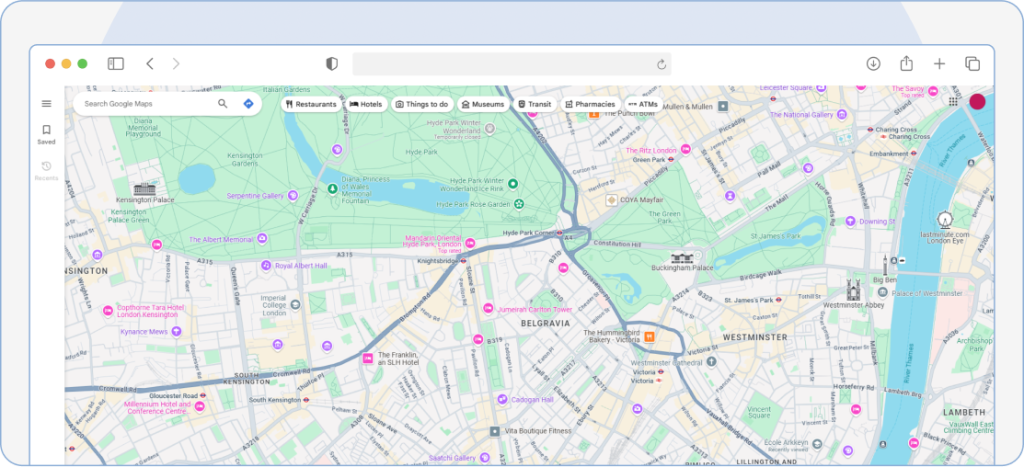
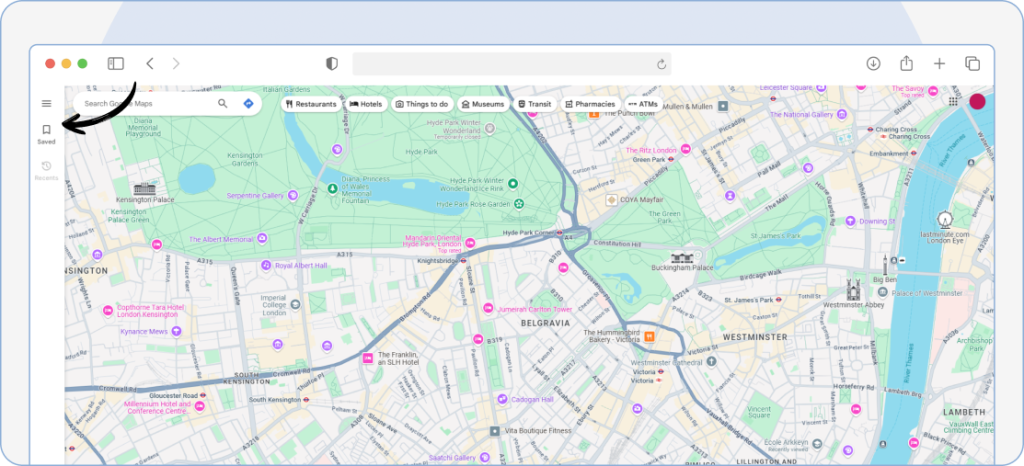
Step 2: Click on ”Saved” at the top left.
Step 3: Tap on the “+ New List” option at the top.
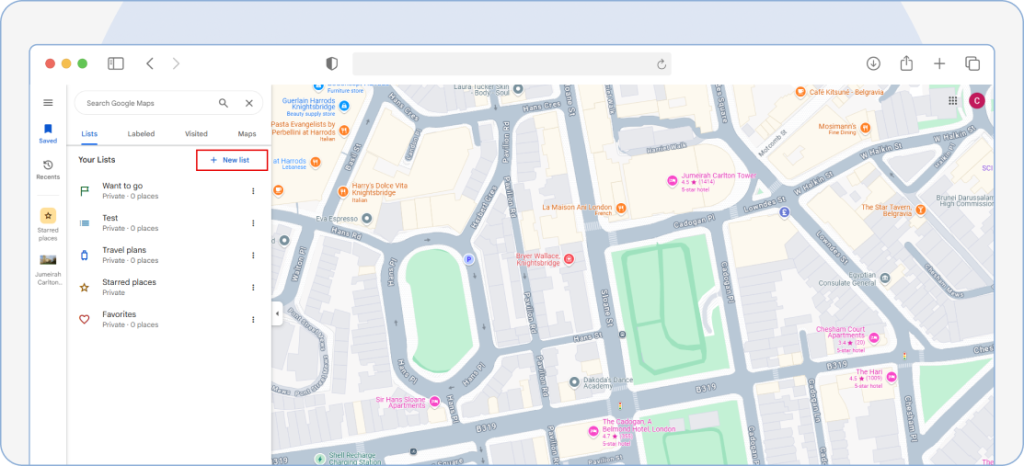
Now, write the name and description and start adding the pins.
Step 1: Open Google Maps on your computer.
Step 2: Find the spot you want to add to the list.
Step 3: As you find the location, click on it, and an information bar will pop up which will have “Save.”
Step 4: Click on it, and a menu bar will appear.
Step 5: In the end, you will have a “New List” option. Click on it, write the name, and that’s how you have your new label ready.
Now that you know how to drop multiple pins on Google Maps on the computer, let’s dive into understanding how you can delete dropped pins.
How to Edit and Delete Dropped Pins?
Edit pins:
General pins:
1. Go to Google Maps.
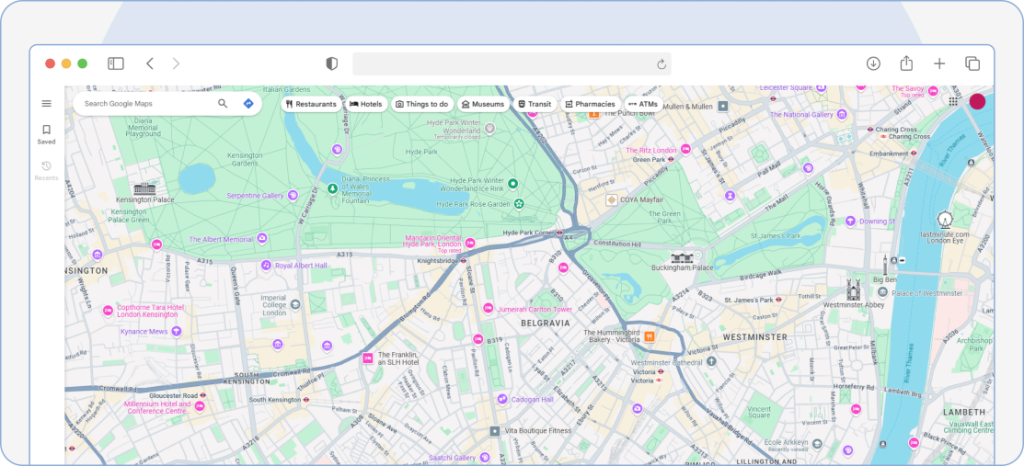
2. Search and tap on the location you want to edit.
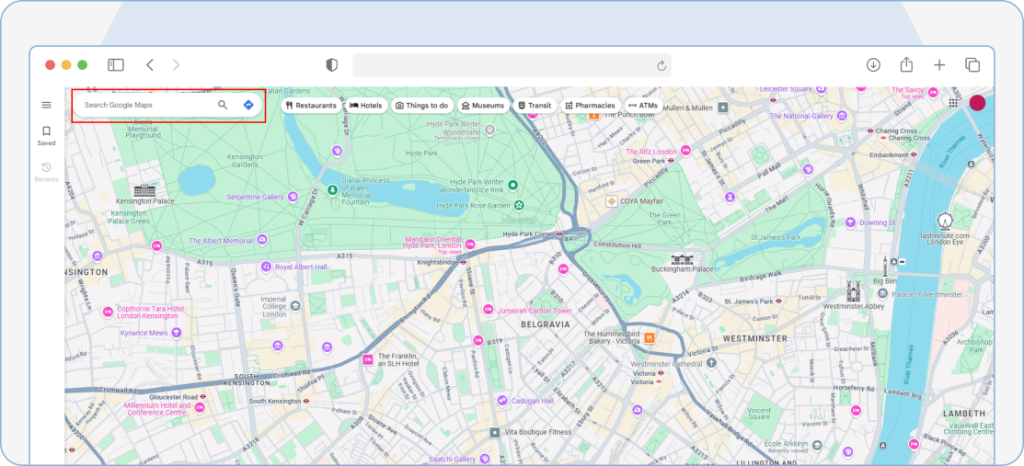
3. You will now see a red pin and an information bar popping up.
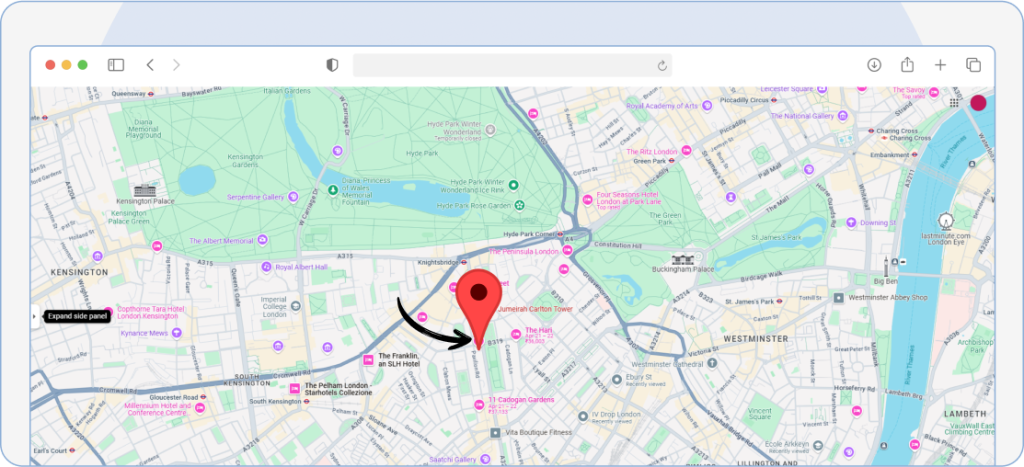
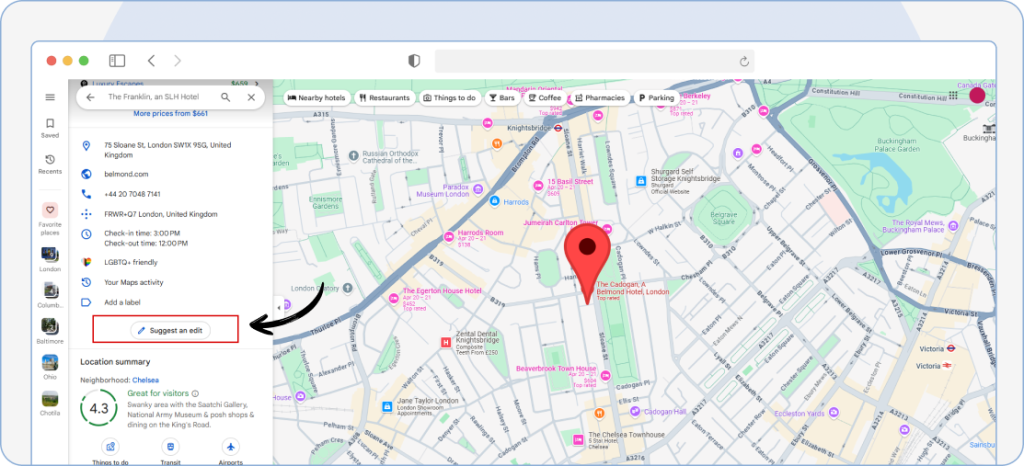
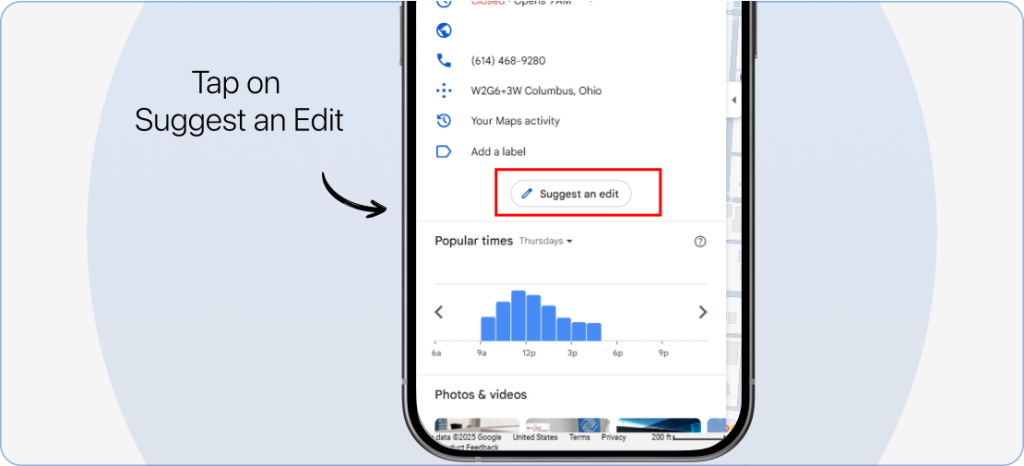
4. In the information bar, scroll down to “Suggest an Edit” and recommend the relevant changes.
My pins (Mobile users):
1. Go to Google Maps.
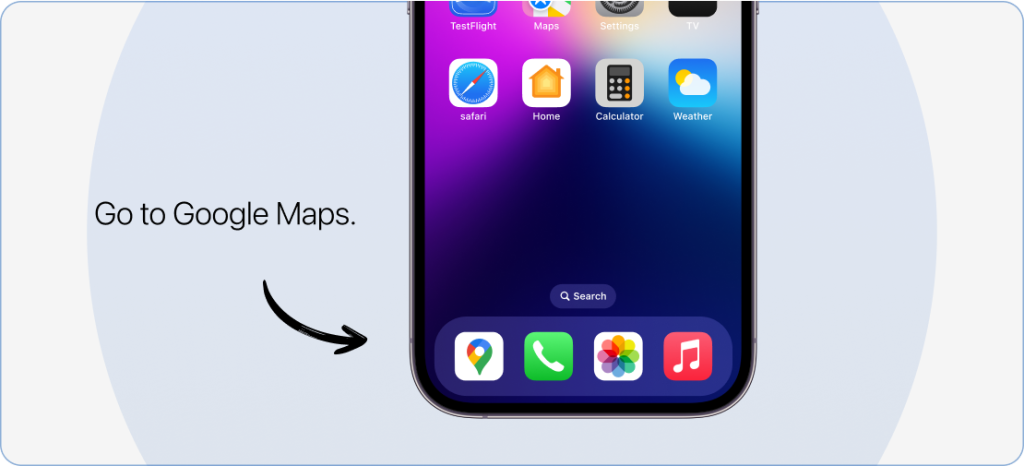
2. Click on “You.”
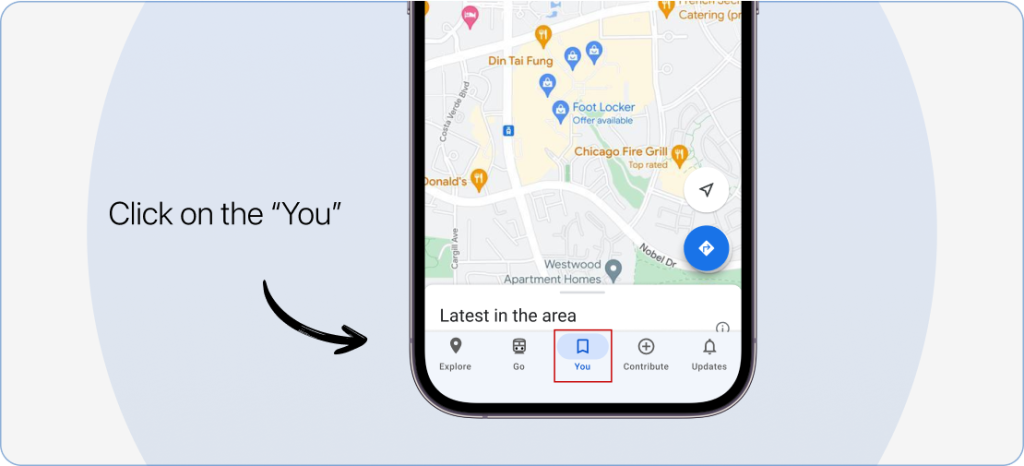
3. Then, select the list that has the pin you want to edit.
4. Choose the pinned location and scroll down to the information bar.
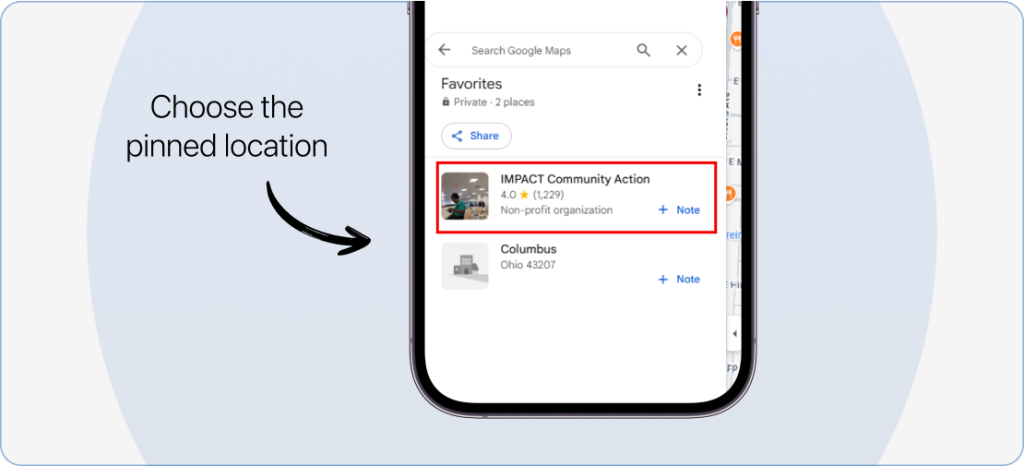
5. Tap on “Suggest an Edit” and recommend the relevant changes.
Delete pins on mobile:
Step 1: Go to Google Maps app and click on the “You” option positioned below in the centre.
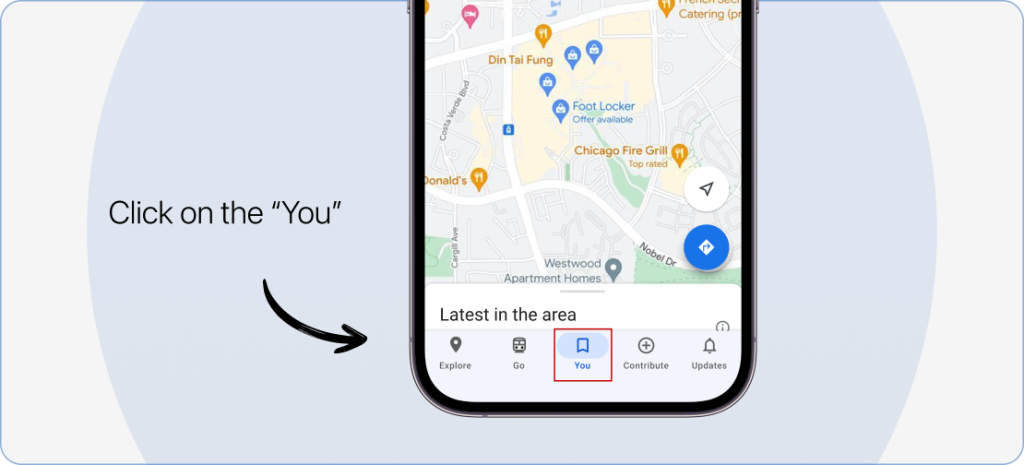
Step 2: In the list, tap on the three dots of the pin that you want to delete.
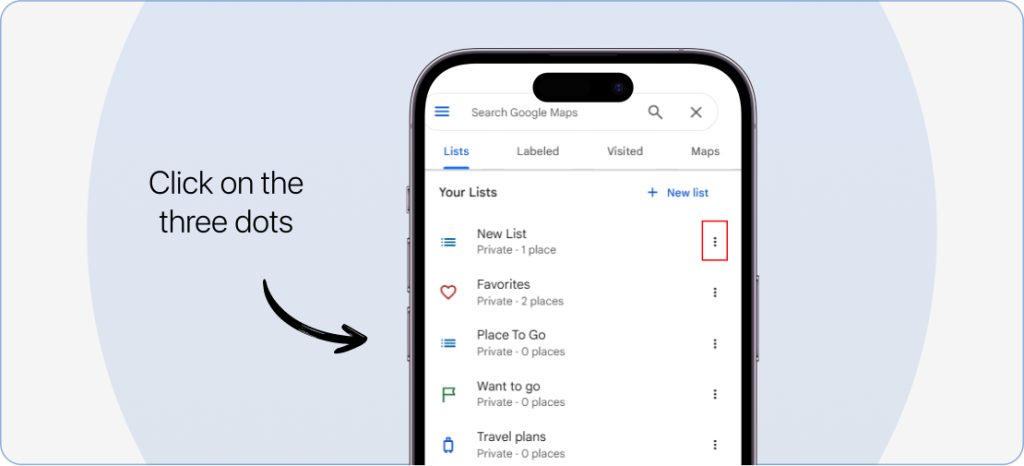
Note: You can only delete the labels or lists you have created. Others are by default and cannot be deleted.
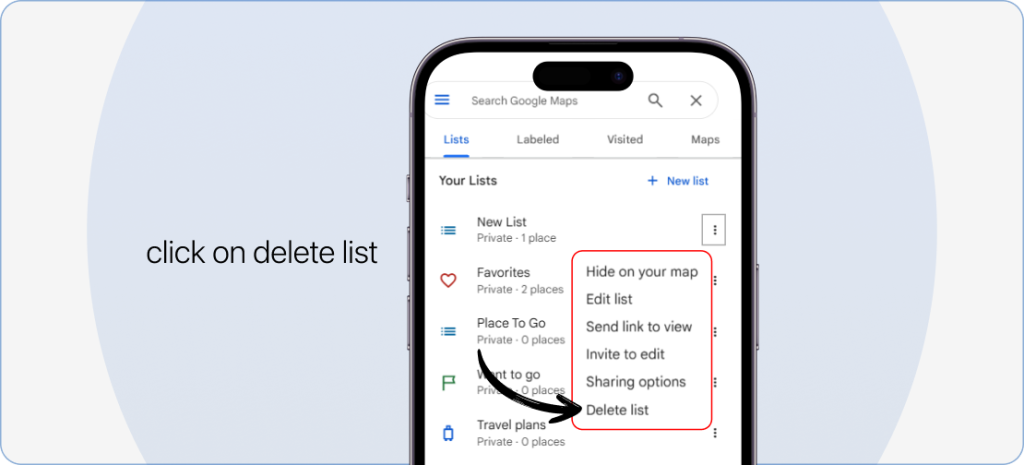
Step 3: Once you do that, you will see a “Delete list” option in the menu. Click on it, and your list is now deleted.
Delete pins on desktop:
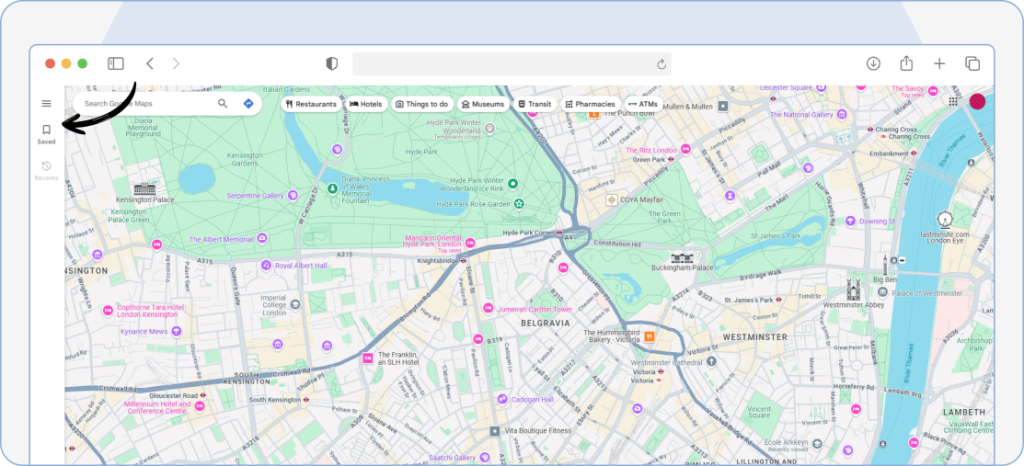
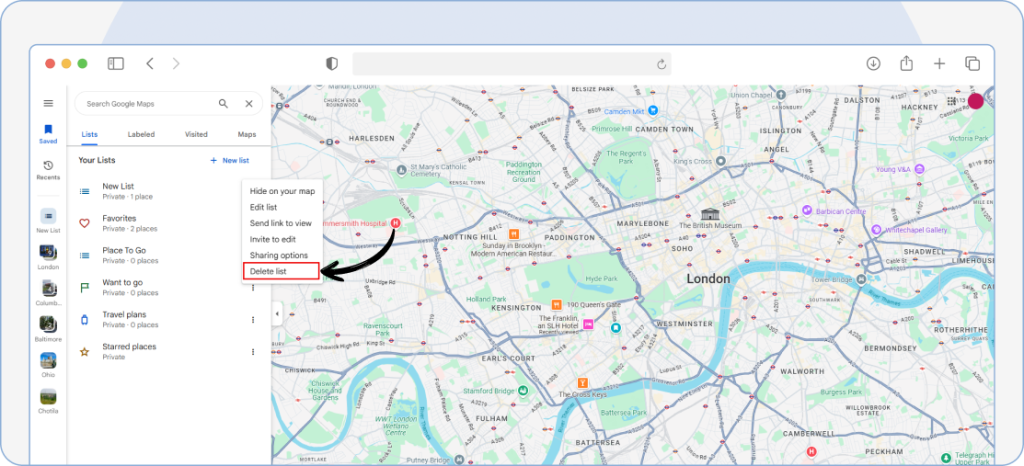
Step 1: Visit Google Maps and click on “Saved” at the top left.
Step 2: In the list, click on the three dots of the pin that you want to delete.
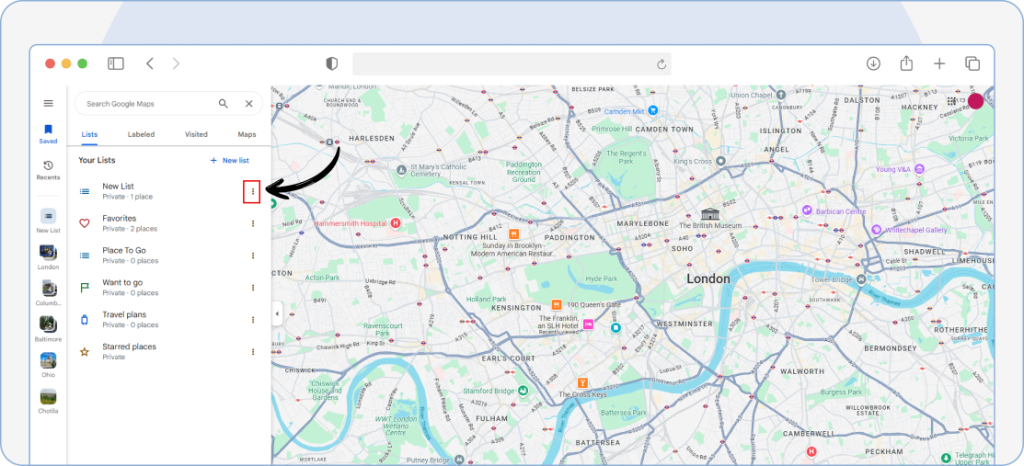
Note: You can only delete the labels or lists you have created. Others are by default and cannot be deleted.
Step 3: After doing that, you will see a “Delete List” option. Click on it, and your list is now deleted.
6 Key Benefits of Dropping A Pin on Google Maps
1. Finds accurate location
Whether you have an address to a specific location or not, Google Maps helps you find and pinpoint the exact spot you want to visit in seconds.
2. Seamless navigation
Pin and reach your desired location with accurate ETAs and optimized routes. You can also measure the distance between your location and the one you want to visit through Maps.
3. Easy sharing
Want to share the directions to your favorite cafe with your friends? Do it with dropped pin locations.
Be it your family or loved ones, Google Maps allows you to share a specific spot over a text, email, and other social media channels like WhatsApp and Instagram.
4. Save for later
Planning an itinerary for your next trip? Pin and label iconic and most traveled spots on Maps so you can make the most out of your getaway.
5. Offline use
Did you know you can pin a location and download the Maps for offline use? Yes, you read it right.
No more network or low battery issues. Just pin, download, and you are all set!
6. Mark important spots
Whether you are parking your vehicle or have discovered an interesting spot, save it all on Google Maps so you never forget the important places.
When Google Maps Pins Aren’t Enough, Get Upper
Google Maps is excellent for saving and navigating to individual locations, but it has real limitations when you’re dealing with more complex routing needs. In such cases, exploring some of the Google Maps best alternatives can give you access to more advanced route planning and optimization features.
For instance, Google Maps only allows up to 10 stops per route. If you’re managing deliveries, service calls, or sales routes with dozens of stops daily, you’ll quickly hit that ceiling.
This is where dedicated route optimization tools like Upper route planner become essential.
Upper lets you import hundreds of stops at once, automatically optimizes the most efficient route sequence, and handles real-world constraints like delivery windows, driver schedules, and vehicle capacity. Instead of manually rearranging pins one by one, you get an optimized route in seconds.
For teams, Upper also provides driver tracking, proof of delivery, and customer notifications, turning a basic pin-dropping workflow into a complete delivery management system.
What Upper offers beyond Google Maps:
- Import unlimited stops via spreadsheet or API
- Automatic route optimization that factors in traffic, time windows, and priorities
- Multi-driver support for dispatching routes to your entire team
- Real-time tracking and delivery confirmation
- Reports showing completed stops, time savings, and route efficiency
Businesses using Upper have reported completing 24% more deliveries daily without adding extra drivers, while cutting planning time by over 11 hours per week.
If your current workflow involves dropping dozens of pins and manually planning routes, see how Upper compares to Google Maps for multi-stop route planning.

See it in action
Import Hundreds of Stops and Optimize Routes Instantly
Google Maps pins work for a handful of locations. For delivery routes with dozens of stops, Upper handles bulk imports from spreadsheets and automatically optimizes your route sequence.

Frequently Asked Questions
Open Google Maps, navigate to your desired location, and press and hold to drop a pin. Once the pin appears, tap the information card at the bottom and select Share.
You can then send the location via text, email, WhatsApp, or any other sharing method available on your device.
Google Maps doesn’t support dropping multiple pins simultaneously. You’ll need to drop and save each pin individually.
For managing multiple locations in a single route, consider using Google Maps trip planner or a dedicated route planning tool like Upper for bulk imports.
Yes. Google Maps generally limits saved places to about 500 locations per list. While you can create multiple lists, users often report issues when total saved locations reach 2,000–3,000, such as older pins no longer displaying.
For larger collections, Google My Maps supports up to 10,000 markers across multiple layers and is better suited for managing many locations.
Dropped pins that aren’t saved are temporary and will disappear when you close the app or drop a new pin.
To keep a pin permanently, make sure to tap Save and add it to a list.
Yes, but you need to download the map area first while you have an internet connection.
Once downloaded, your saved pins within that region will be accessible offline.


